> ## Documentation Index
> Fetch the complete documentation index at: https://docs.brikl.co/llms.txt
> Use this file to discover all available pages before exploring further.
# E-Tutor
Advanced Level : High level of Bubble experience and complex design, workflow and data requirements.
 ## Overview
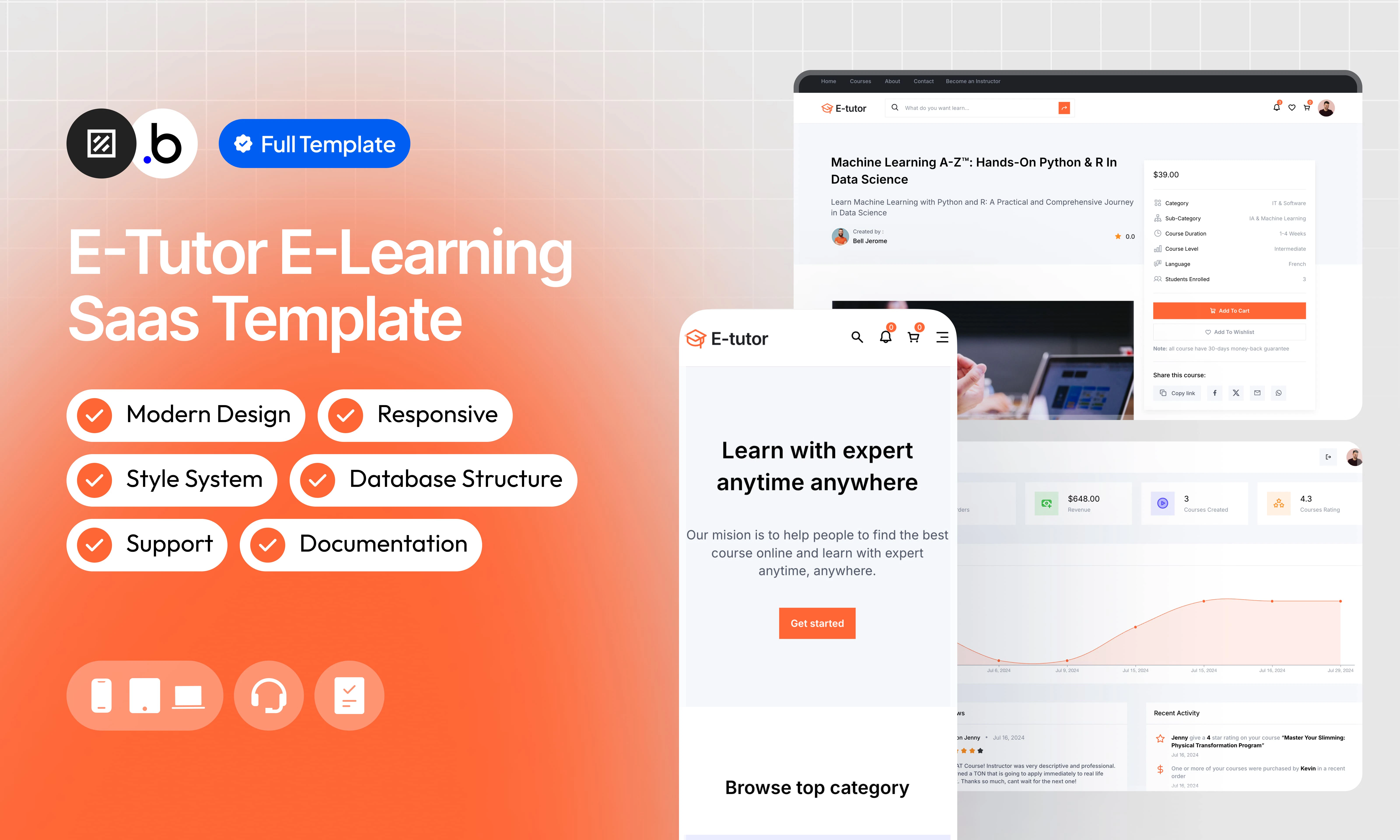
This template provides a complete, ready-to-use foundation for building an online course platform. It covers the entire user journey, from sign-up and login through course purchase, progress tracking, and platform administration, so you can focus on your content rather than building infrastructure from scratch.
The template includes dedicated dashboards for students, instructors, and administrators, a built-in pricing system that handles taxes and coupons, and a fully responsive design that works seamlessly across all devices. It also comes with a quick style system to accelerate customization, full documentation, and reactive support to help you get up and running fast.
## Functionalities
Simplify access to the platform with an intuitive sign-in and login page for all users.
Easily manage your purchased courses, track your progress and access your favorite content via a user-friendly dashboard.
Publish and manage your courses, track sales and interact with students through a comprehensive and intuitive dashboard.
Monitor the entire platform, manage users and courses, and access detailed statistics for effective administration.
Enjoy a modern and clean design that fits perfectly on all devices, providing an optimal user experience.
Get more done with an integrated style system that speeds up the creation and management of your content.
Offer transparent and competitive prices with an automatic system of integrating taxes and coupons in the calculation of the final price.
Access detailed documentation that covers all the platform’s features, making it easy to get started and use.
Get responsive and professional technical support to quickly resolve all your questions and concerns.
## Pages
E-Tutor platform homepage offers an overview of popular courses, featured instructors, and new updates. This is the starting point to explore the offers and discover the platform’s features.
This page displays all the courses added by the user to his cart. It allows you to apply discount coupons and see the total to pay before proceeding with the payment.
The checkout page allows users to complete their purchase.
The instructor dashboard allows them to manage their courses, track sales, interact with students, and access performance statistics.
The users dashboard displays purchased courses, progress of current courses and allows you to manage account settings.
The administrator dashboard allows you to supervise the entire platform. They can manage users, prices, transactions and access detailed analyses.
This page details a specific course, including the syllabus, learning objectives, student feedback and instructor information.
The viewing page allows users to access the content of courses they have purchased. They can watch the videos, download resources and track their progress.
The registration page allows new users to create an account on the platform by entering their personal information and preferences.
The login page allows existing users to log in to their account using their email address and password.
This page displays a complete list of all courses available on the platform. Users can filter courses by category, level, price and title.
This page presents all the instructors registered on the platform, with a search feature to find an instructor by name
The job opportunities page details available positions at E-Tutor, required qualifications and benefits offered.
The contact page allows users to ask questions, request help or provide feedback via a contact form.
The FAQ page provides answers to frequently asked questions from users, covering various aspects of using the platform.
This page details the profile of a specific instructor, including his or her biography, the courses he offers and student reviews.
The "About Us" page presents the history, mission, values and team behind E-Tutor, giving an insight into the company.
This page provides specific details about a particular job offer at E-Tutor, including responsibilities, qualifications required and an application form.
This page allows users to reset their password.
The 404 page is displayed when the user tries to access a non-existing page. It offers links to the main sections of the site to help you find your way back.
## Reusable Elements
A collection of shared components built to be used across multiple pages, helping maintain design consistency while making updates and scaling more efficient.
A reusable element creates an element that contains other elements, like a group, that can be used in more than one place. This is useful when reusing the same elements often. Using reusable elements keeps the app smaller and makes it easier to edit.
The header is a reusable element present on all pages of the platform. It includes a search box that allows users to quickly find courses, as well as navigation buttons for easy access to main pages such as the home, Courses, instructors, dashboard and login/sign-in pages.
The footer is a reusable element located at the bottom of each page. It features various navigation links leading to important pages like "About us", "Contact", "FAQ", "Careers", and social networks.
## Workflows
This structure uses folders and colors to organize workflows clearly, improve readability, and ensure consistent logic management across the application.
In Bubble, workflows define how an application behaves. They are triggered by events and run actions that manage data, navigation, and user interactions.
### Folders
Folders are structured by functional category, with each folder grouping workflows related to a specific domain of the application. This approach ensures that every type of logic has its dedicated space, making the overall workflow architecture clearer, more organized, and easier to maintain.
This folder contains workflows responsible for creating, updating, deleting, and managing data within the application. It centralizes all logic that interacts directly with the database to ensure structured and consistent data handling.
This folder groups workflows that control page transitions, redirects, and user journeys. It defines how users move through the application and ensures a clear and predictable flow.
This folder includes workflows that depend on external plugins or third party integrations. It isolates plugin related logic to keep the core application structure clean and organized.
This folder contains workflows that affect the user interface, such as showing or hiding elements, triggering animations, or dynamically updating what the user sees. It manages front end behavior without altering stored data.
This folder groups workflows that manage temporary front end data stored in custom states. It is used to control dynamic interactions and interface logic without impacting the database.
Custom states are variables that you can save on any element on the page, including the page itself. They let you store data temporarily that is reset when the page is reloaded. This is useful when you need your app to remember some information that you don’t need to store permanently in the database.
This folder includes workflows dedicated to sending automated or transactional emails. It centralizes communication logic to ensure consistency and easier maintenance.
This folder contains workflows that handle external API calls and data exchanges with outside services. It organizes integration logic and keeps external communication clearly separated from internal processes.
### Colors
Colors are used as visual indicators to distinguish workflow types and intentions. Each color corresponds to a specific category of action, allowing quick recognition of the workflow’s purpose and improving readability across the entire logic structure.
Blue is used for workflows involving navigation, such as redirects to other pages or links.
Green indicates workflows involving the database, such as creating or updating data in the database or the registration/connection system.
Red indicates workflows that have an impact on deleting data or resetting values.
Orange is reserved for visual elements, such as showing or disappearing pop-ups, floating groups, and other such interactive elements.
This color is reserved for elements related to APIs and Plugins.
The Cyan color indicates specific interactions triggered by custom events or custom states.
Brown is use for email send
## Datatypes
The database consists of different **data types** that you as the developer plan and set up. Data types are like containers that hold specific types of information and each data type is made up of **fields** where that information is stored.
### User
| Field Name | Type | Note |
| ----------------- | --------------------------- | ----------------------------------------------------------------------- |
| First Name | `text` | Contains the user’s first name |
| Last Name | `text` | Contains the user’s last name |
| Profession | `text` | Contains the user’s profession |
| Photo | `image` | Contains the user's profile photo |
| Terms | `yes/no` | Determines whether the user agrees to the platform terms and conditions |
| Instructor | `Instructor ID` | **Contains the Instructor ID if this user is an instructor** |
| Wishlist | `List of Courses` | **List of Courses liked by the user** |
| Courses Completed | `List of Courses` | **List of Courses completed by the user** |
| Courses Purchased | `List of Courses` | **List of Courses purchased by the user** |
| Lectures Finished | `List of Lectures` | **List of Lectures finished by the user** |
| Status | `User Status (Option Sets)` | **Contains the user’s account type** |
| Verification Code | `text` | Contains the verification code received by the user |
| Verified | `yes/no` | Indicates whether the user’s account has been verified or not |
| Expiration Code | `date` | Contains the verification period |
### Instructor
| Field Name | Type | Note |
| ------------- | ----------------------- | ------------------------------------------------------------------------------ |
| Biography | `text` | Contains the instructor's biography |
| Completed | `yes/no` | Determines if the instructor profile is complete |
| Demo ⚠️ | `yes/no` | Determines if it is a demo account |
| Facebook | `text` | Contains the link to the instructor’s facebook page |
| Instagram | `text` | Contains the link to the instructor’s instagram page |
| Linkedin | `text` | Contains the link to the instructor’s linkedin page |
| Twitter | `text` | Contains the link to the instructor’s twitter page |
| Youtube | `text` | Contains the link to the instructor’s youtube channel |
| Whatsapp | `text` | Contains the link to the instructor’s whatsapp |
| Website | `text` | Contains the link to the instructor’s website |
| Notifications | `List of Notifications` | **Contains notifications that concern the instructor’s activity** |
| Students | `List of Users` | **Contains the list of users who have purchased courses from this instructor** |
| Phone | `number` | Contains the instructor’s phone number |
### Courses
| Field Name | Type | Note |
| ------------- | --------------------- | --------------------------------------------------------------------------------- |
| Title | `text` | Contains the course title |
| Trailer Video | `text` | Contains the link to the course presentation video |
| Thumbnail | `image` | Contains the course thumbnail |
| Coupon | `number` | Contains the discount that may be applied to the price of the course |
| Demo ⚠️ | `yes/no` | Determines if it is a demo course |
| Teach | `List of text` | Contains the list of main elements that will be taught in this course |
| Audience | `List of text` | Contains the list of target audience for this course |
| Requirements | `List of text` | Contains the list of prerequisites to take this course |
| Subtitle | `text` | Contains the course subtitle |
| Sub-Category | `Course Sub-Category` | **Contains the subcategory in which this course is located** |
| Students | `number` | Contains the number of users who have purchased this course |
| Status | `Course Status` | **Determine whether the course is in draft, verification, rejected or published** |
| Price | `number` | Contains the course price |
| Description | `text` | Contains the course description |
| Duration | `Course Duration` | **Contains the course duration** |
| Language | `Course Language` | **Contains the course language** |
| Level | `Course Level` | **Contains the course level** |
### Section
| Field Name | Type | Note |
| ---------- | ----------- | ---------------------------------------------------------------- |
| Course | `Course ID` | **Contains the course ID where this section will be integrated** |
| Name | `text` | Contains the name of the section |
### Lecture
| Field Name | Type | Note |
| ------------ | ------------ | ---------------------------------------------------------------------------------- |
| Course | `Course ID` | **Contains the course ID where this lecture will be integrated** |
| Description | `text` | Contains the description of the lecture |
| Lecture File | `file` | Contains the document related to this lecture, which can be downloaded by the user |
| Section | `Section ID` | **Contains the ID of the section in which this lecture is located** |
| Title | `text` | Contains the title of this lecture |
| Video Link | `text` | Contains the link to the video of this lecture |
### Coupon
| Field Name | Type | Note |
| ---------- | -------- | ------------------------------------- |
| Code | `text` | Contains the coupon code |
| Value | `number` | Contains the value of the coupon code |
### Cart
| Field Name | Type | Note |
| ----------- | ----------- | --------------------------------------------------------------------- |
| Course | `Course ID` | **Contains the course place in the shopping cart by the user** |
| Coupon Code | `text` | Contains the the coupon code used by the user |
| Coupon | `number` | Contains the value of the coupon used by the user in percent (%) |
| Demo ⚠️ | `yes/no` | Determines if it is a demo cart |
| Fees | `number` | Contains the commission that goes to the platform |
| Discount | `number` | Contains the value of the coupon used by the user formatted in number |
| Taxes | `number` | Contains the tax to be paid by the client (20% of the subtotal) |
| Ordered | `yes/no` | Indicates whether this shopping cart has been ordered or not |
| Subtotal | `number` | Contains the total of the shopping cart (excluding other fees) |
### Order
| Field Name | Type | Note |
| ------------ | --------------------- | ------------------------------------------------------------- |
| Client Total | `number` | Contains the total amount to be paid by the customer |
| Instructors | `List of Instructors` | **Contains the list of instructors affected by this command** |
| Cart | `List of Carts` | **Contains all the details of the shopping cart ordered** |
| Demo ⚠️ | `yes/no` | Determines if it is a demo order |
### Course Reviews
| Field Name | Type | Note |
| ---------- | ----------- | ------------------------------------------- |
| Course | `Course ID` | **Contains the Course that has been rated** |
| Comments | `text` | Contains the comment left by the user |
| Rating | `number` | Contains the note left by the user |
| Demo ⚠️ | `yes/no` | Determines if it is a demo course review |
### Instructor Review
| Field Name | Type | Note |
| ---------- | --------------- | ----------------------------------------------- |
| Instructor | `Instructor ID` | **Contains the Instructor that has been rated** |
| Comments | `text` | Contains the comment left by the user |
| Rating | `number` | Contains the note left by the user |
### Job
| Field Name | Type | Note |
| ------------ | ------------------------ | ---------------------------------------------------------- |
| Address | `text` | Contains the exact address for this position |
| Benefits | `List of text` | Contains the list of benefits for this position |
| City | `text` | Contains the city for this position |
| Country | `text` | Contains the country for this position |
| Deadline | `date` | Contains the deadline to apply for the job |
| Description | `text` | Contains the description of the job |
| Job Type | `Job Type (Option Sets)` | Contains the type of job (Full Time, Part Time, Flex Time) |
| Max Salary | `number` | Contains the maximum salary for this position |
| Min Salary | `number` | Contains the minimum salary for this position |
| Publish | `yes/no` | Determines if the ad is published on the platform |
| Requirements | `List of text` | The list of prerequisites to apply for this position |
| Title | `text` | Contains the job title |
### Lecture Comments
| Field Name | Type | Note |
| ---------- | ------------ | ------------------------------------------- |
| Comments | `text` | The user’s comment in relation to a lecture |
| Lecture | `Lecture ID` | **The lecture concerned by this comment** |
### Lecture Reply
| Field Name | Type | Note |
| ---------------- | --------------------- | --------------------------------------------------------- |
| Lecture | `Lecture ID` | **Contains the lecture affected by this response** |
| Lecture Comments | `Lecture Comments ID` | **Contains the comment to which the instructor responds** |
| Reply | `text` | Contains instructor response |
### Notifications
| Field Name | Type | Note |
| ---------- | -------------------------------------- | ------------------------------------------------------------------------------------------ |
| Category | `Notifications Category (Option Sets)` | **Contains the type of notifications that will be received (Purchase, Reviews, Comments)** |
| Message | `text` | The message that will be sent to the recipient |
| Recipients | `List of Users` | **The list of users who will receive this notification** |
## Option Sets
This section covers option sets, used to store a static list of options in a database-like structure
Option sets let you set up different types of static options in a database-like structure, but without using the database. This is useful to store information like days of the week, marital status, colors, states, countries and other data that you want to load quickly and that’s rarely updated.
### Admin Dashboard
This option set defines the different navigation tabs within the admin dashboard. It is used to control internal navigation and manage which section.
| Attributes | Type | Note |
| ---------- | ------ | ----------------------------------------- |
| Display | `text` | The label shown for each tab. |
| Icon | `text` | The Iconify icon associated with the tab. |
* Home
* Courses
* Instructors
* Users
* Orders
* Reviews
* Jobs
* Settings
### Course Category
Lists the main categories used to classify courses on the platform.
| Attributes | Type | Note |
| ---------------- | ------ | ---------------------------------------------------------------------- |
| Display | `text` | The name of the category. |
| Icon | `text` | The Iconify icon representing the category. |
| Icon Color | `text` | The HEX color applied to the icon. |
| Background Color | `text` | The background color for the category badge or secondary accent color. |
* IT & Software
* Finance & Accounting
* Music
* Marketing
* Design
* Photography & Video
* Health & Fitness
* Business
### Course Duration
Defines the available duration ranges used to filter or describe course length.
| Attributes | Type | Note |
| ---------- | ------ | ------------------------- |
| Display | `text` | The duration range label. |
* 6-12 Months
* 3-6 Months
* 1-3 Months
* 1-4 Weeks
* 1-7 Days
### Course Language
Lists the languages in which courses can be offered.
| Attributes | Type | Note |
| ---------- | ------ | ------------------------- |
| Display | `text` | The name of the language. |
* French
* English
* Spanish
* German
* Portuguese
### Course Level
Indicates the difficulty level of a course.
| Attributes | Type | Note |
| ---------- | ------ | ---------------------------------------------------- |
| Display | `text` | The level label (Beginner, Intermediate, or Expert). |
* Beginner
* Intermediate
* Expert
### Course Status
Tracks the current publication state of a course throughout its lifecycle.
| Attributes | Type | Note |
| ---------------- | ------ | -------------------------------------------------------------------- |
| Display | `text` | The status label (Draft, Verification, Published, or Rejected). |
| Icon | `text` | The Iconify icon representing the status. |
| Icon Color | `text` | The HEX color applied to the status icon. |
| Background Color | `text` | The background color for the status badge or secondary accent color. |
* Draft
* Verification
* Published
* Rejected
### Course Sub-Category
Lists the sub-categories used to further refine course classification within a main category.
| Attributes | Type | Note |
| --------------- | ---------- | ------------------------------------------------- |
| Display | `text` | The name of the sub-category. |
| Course Category | `Category` | The parent category this sub-category belongs to. |
* Web Development
* Cybersecurity
* IA & Machine Learning
* Big Data
* Project Management
* Entrepreneurship
* Human Resource
* Business Strategy
* Composition and Theory
* Music Production
* Instruments
* Song and Voice
* General Accounting
* Investment
* Financial Management
* Fiscality
* Digital Marketing
* Marketing Strategy
* Network Marketing
* Publicity
* Graphic Design
* UX/UI Design
* Interior Design
* Products Design
* Photography
* Video
* Equipment
* Advanced Techniques
* Fitness Training
* Nutrition & Dietetics
* Mental Health
* Well-being & Life Style
### Create/Edit Course Tab
Defines the step-by-step tabs displayed when creating or editing a course.
| Attributes | Type | Note |
| ---------- | ------ | ---------------------------------------------------------------------- |
| Display | `text` | The tab label (Basic Information, Advance Information, or Curriculum). |
| Icon | `text` | The Iconify icon associated with the tab. |
* Basic Information
* Advance Information
* Curriculum
### Instructor Dashboard
Defines the tabs displayed in the instructor dashboard navigation.
| Attributes | Type | Note |
| ---------- | ------ | ----------------------------------------- |
| Display | `text` | The label shown for each tab. |
| Icon | `text` | The Iconify icon associated with the tab. |
* Dashboard
* Create New Course
* My Courses
* Earning
* Settings
### Job Type
Lists the employment types available for instructor or team profiles.
| Attributes | Type | Note |
| ---------- | ------ | ---------------------------------------------------- |
| Display | `text` | The type label (Full Time, Part Time, or Flex Time). |
* Full Time
* Part Time
* Flex Time
### My Course Tab
Defines the view options available in the instructor's course management section.
| Attributes | Type | Note |
| ---------- | ------ | ----------------------------------------------------- |
| Display | `text` | The tab label (Search, Edit Course, or View Details). |
* Search
* Edit Course
* View Details
### Notifications Settings
Lists the individual notification preferences a user can enable or disable.
| Attributes | Type | Note |
| ---------- | ------ | -------------------------------------------- |
| Display | `text` | The description of the notification setting. |
* I want to know who buy my course.
* I want to know who write a review on my course.
* I want to know who commented on my lecture.
* I want to know who download my lecture notes.
* I want to know who replied on my comment.
* I want to know daily how many people visited my profile.
* I want to know who download my lecture attach file.
### Notifications Category
Groups notifications into high-level categories for easier management.
| Attributes | Type | Note |
| ---------- | ------ | -------------------------------------------------- |
| Display | `text` | The category name (Purchase, Review, or Comments). |
| Icon | `text` | The Iconify icon representing the category. |
* Purchase
* Reviews
* Comments
### Student Dashboard
Defines the tabs displayed in the student dashboard navigation.
| Attributes | Type | Note |
| ---------- | ------ | ----------------------------- |
| Display | `text` | The label shown for each tab. |
* Dashboard
* Courses
* Wishlist
* Purchase History
* Settings
### Users Status
Identifies the role assigned to users within the template demo environment.
| Attributes | Type | Note |
| ---------- | ------ | -------------------------------- |
| Display | `text` | The status label (Demo or Admin) |
* Demo
* Admin
## Plugins
An overview of the external plugins integrated into the application to extend its native capabilities and enhance specific features or functionalities.
You might need to install these plugins when using the template.
### Feather Icons
Free
Visual icon elements from the Feather Icons suite ([https://feathericons.com/](https://feathericons.com/)). Customize the color, fill color, and stroke width. Elements should maintain the standard Bubble element properties.
### Animated Rating Stars
Free
Add animated star rating input with configurable size, colors, and default value. Supports static and interactive modes, user interaction events, responsive layout, and rating reset actions.
### Chart Element
Free
Add a chart element to your application. You can display line, bar charts or polar charts.
### Air Copy To Clipboard
Free
The Air Copy to Clipboard plugin for the Bubble application allows users to copy text to the clipboard with a single action.
### **Reveal & Hide Password**
Free
Toggle password visibility in Bubble input fields using a reveal/hide icon. Supports icon size, color, position, default visibility state, multiple inputs, and dynamic control with minimal setup.
### **Rich Text Editor**
Free
Enable your users to write rich, formatted text in an input. Compatible with text elements and email.
### Toolbox
Free
Javascript and utility elements: List of Numbers, Expression, Javascript to Bubble, List Item Expression, Run javascript (workflow action), Server script (server workflow action).
### Iconify
Free
Unofficial Iconify plugin. Add any Icon from [http://iconify.design](http://iconify.design) to you application, change it's color\*, flip it, rotate it\*, resize it, just do what you want.
### Progress Bar
Free
The Progress Bar Plugin creates an element that displays a progress bar that shows the user what percentage of a task is completed.
## Refund Policy
This policy defines the conditions under which refunds may be requested for our products. It distinguishes between templates distributed through the Bubble Marketplace and the Brikl Chrome Extension, specifying the applicable deadlines, eligibility requirements, and usage-related limitations for each.
## Support
Your satisfaction is our priority. Do not hesitate to contact us if you have any questions or problems.
[support@brikl.co](mailto:support@brikl.co)
[https://www.brikl.co/](https://www.brikl.co/)
## Overview
This template provides a complete, ready-to-use foundation for building an online course platform. It covers the entire user journey, from sign-up and login through course purchase, progress tracking, and platform administration, so you can focus on your content rather than building infrastructure from scratch.
The template includes dedicated dashboards for students, instructors, and administrators, a built-in pricing system that handles taxes and coupons, and a fully responsive design that works seamlessly across all devices. It also comes with a quick style system to accelerate customization, full documentation, and reactive support to help you get up and running fast.
## Functionalities
Simplify access to the platform with an intuitive sign-in and login page for all users.
Easily manage your purchased courses, track your progress and access your favorite content via a user-friendly dashboard.
Publish and manage your courses, track sales and interact with students through a comprehensive and intuitive dashboard.
Monitor the entire platform, manage users and courses, and access detailed statistics for effective administration.
Enjoy a modern and clean design that fits perfectly on all devices, providing an optimal user experience.
Get more done with an integrated style system that speeds up the creation and management of your content.
Offer transparent and competitive prices with an automatic system of integrating taxes and coupons in the calculation of the final price.
Access detailed documentation that covers all the platform’s features, making it easy to get started and use.
Get responsive and professional technical support to quickly resolve all your questions and concerns.
## Pages
E-Tutor platform homepage offers an overview of popular courses, featured instructors, and new updates. This is the starting point to explore the offers and discover the platform’s features.
This page displays all the courses added by the user to his cart. It allows you to apply discount coupons and see the total to pay before proceeding with the payment.
The checkout page allows users to complete their purchase.
The instructor dashboard allows them to manage their courses, track sales, interact with students, and access performance statistics.
The users dashboard displays purchased courses, progress of current courses and allows you to manage account settings.
The administrator dashboard allows you to supervise the entire platform. They can manage users, prices, transactions and access detailed analyses.
This page details a specific course, including the syllabus, learning objectives, student feedback and instructor information.
The viewing page allows users to access the content of courses they have purchased. They can watch the videos, download resources and track their progress.
The registration page allows new users to create an account on the platform by entering their personal information and preferences.
The login page allows existing users to log in to their account using their email address and password.
This page displays a complete list of all courses available on the platform. Users can filter courses by category, level, price and title.
This page presents all the instructors registered on the platform, with a search feature to find an instructor by name
The job opportunities page details available positions at E-Tutor, required qualifications and benefits offered.
The contact page allows users to ask questions, request help or provide feedback via a contact form.
The FAQ page provides answers to frequently asked questions from users, covering various aspects of using the platform.
This page details the profile of a specific instructor, including his or her biography, the courses he offers and student reviews.
The "About Us" page presents the history, mission, values and team behind E-Tutor, giving an insight into the company.
This page provides specific details about a particular job offer at E-Tutor, including responsibilities, qualifications required and an application form.
This page allows users to reset their password.
The 404 page is displayed when the user tries to access a non-existing page. It offers links to the main sections of the site to help you find your way back.
## Reusable Elements
A collection of shared components built to be used across multiple pages, helping maintain design consistency while making updates and scaling more efficient.
A reusable element creates an element that contains other elements, like a group, that can be used in more than one place. This is useful when reusing the same elements often. Using reusable elements keeps the app smaller and makes it easier to edit.
The header is a reusable element present on all pages of the platform. It includes a search box that allows users to quickly find courses, as well as navigation buttons for easy access to main pages such as the home, Courses, instructors, dashboard and login/sign-in pages.
The footer is a reusable element located at the bottom of each page. It features various navigation links leading to important pages like "About us", "Contact", "FAQ", "Careers", and social networks.
## Workflows
This structure uses folders and colors to organize workflows clearly, improve readability, and ensure consistent logic management across the application.
In Bubble, workflows define how an application behaves. They are triggered by events and run actions that manage data, navigation, and user interactions.
### Folders
Folders are structured by functional category, with each folder grouping workflows related to a specific domain of the application. This approach ensures that every type of logic has its dedicated space, making the overall workflow architecture clearer, more organized, and easier to maintain.
This folder contains workflows responsible for creating, updating, deleting, and managing data within the application. It centralizes all logic that interacts directly with the database to ensure structured and consistent data handling.
This folder groups workflows that control page transitions, redirects, and user journeys. It defines how users move through the application and ensures a clear and predictable flow.
This folder includes workflows that depend on external plugins or third party integrations. It isolates plugin related logic to keep the core application structure clean and organized.
This folder contains workflows that affect the user interface, such as showing or hiding elements, triggering animations, or dynamically updating what the user sees. It manages front end behavior without altering stored data.
This folder groups workflows that manage temporary front end data stored in custom states. It is used to control dynamic interactions and interface logic without impacting the database.
Custom states are variables that you can save on any element on the page, including the page itself. They let you store data temporarily that is reset when the page is reloaded. This is useful when you need your app to remember some information that you don’t need to store permanently in the database.
This folder includes workflows dedicated to sending automated or transactional emails. It centralizes communication logic to ensure consistency and easier maintenance.
This folder contains workflows that handle external API calls and data exchanges with outside services. It organizes integration logic and keeps external communication clearly separated from internal processes.
### Colors
Colors are used as visual indicators to distinguish workflow types and intentions. Each color corresponds to a specific category of action, allowing quick recognition of the workflow’s purpose and improving readability across the entire logic structure.
Blue is used for workflows involving navigation, such as redirects to other pages or links.
Green indicates workflows involving the database, such as creating or updating data in the database or the registration/connection system.
Red indicates workflows that have an impact on deleting data or resetting values.
Orange is reserved for visual elements, such as showing or disappearing pop-ups, floating groups, and other such interactive elements.
This color is reserved for elements related to APIs and Plugins.
The Cyan color indicates specific interactions triggered by custom events or custom states.
Brown is use for email send
## Datatypes
The database consists of different **data types** that you as the developer plan and set up. Data types are like containers that hold specific types of information and each data type is made up of **fields** where that information is stored.
### User
| Field Name | Type | Note |
| ----------------- | --------------------------- | ----------------------------------------------------------------------- |
| First Name | `text` | Contains the user’s first name |
| Last Name | `text` | Contains the user’s last name |
| Profession | `text` | Contains the user’s profession |
| Photo | `image` | Contains the user's profile photo |
| Terms | `yes/no` | Determines whether the user agrees to the platform terms and conditions |
| Instructor | `Instructor ID` | **Contains the Instructor ID if this user is an instructor** |
| Wishlist | `List of Courses` | **List of Courses liked by the user** |
| Courses Completed | `List of Courses` | **List of Courses completed by the user** |
| Courses Purchased | `List of Courses` | **List of Courses purchased by the user** |
| Lectures Finished | `List of Lectures` | **List of Lectures finished by the user** |
| Status | `User Status (Option Sets)` | **Contains the user’s account type** |
| Verification Code | `text` | Contains the verification code received by the user |
| Verified | `yes/no` | Indicates whether the user’s account has been verified or not |
| Expiration Code | `date` | Contains the verification period |
### Instructor
| Field Name | Type | Note |
| ------------- | ----------------------- | ------------------------------------------------------------------------------ |
| Biography | `text` | Contains the instructor's biography |
| Completed | `yes/no` | Determines if the instructor profile is complete |
| Demo ⚠️ | `yes/no` | Determines if it is a demo account |
| Facebook | `text` | Contains the link to the instructor’s facebook page |
| Instagram | `text` | Contains the link to the instructor’s instagram page |
| Linkedin | `text` | Contains the link to the instructor’s linkedin page |
| Twitter | `text` | Contains the link to the instructor’s twitter page |
| Youtube | `text` | Contains the link to the instructor’s youtube channel |
| Whatsapp | `text` | Contains the link to the instructor’s whatsapp |
| Website | `text` | Contains the link to the instructor’s website |
| Notifications | `List of Notifications` | **Contains notifications that concern the instructor’s activity** |
| Students | `List of Users` | **Contains the list of users who have purchased courses from this instructor** |
| Phone | `number` | Contains the instructor’s phone number |
### Courses
| Field Name | Type | Note |
| ------------- | --------------------- | --------------------------------------------------------------------------------- |
| Title | `text` | Contains the course title |
| Trailer Video | `text` | Contains the link to the course presentation video |
| Thumbnail | `image` | Contains the course thumbnail |
| Coupon | `number` | Contains the discount that may be applied to the price of the course |
| Demo ⚠️ | `yes/no` | Determines if it is a demo course |
| Teach | `List of text` | Contains the list of main elements that will be taught in this course |
| Audience | `List of text` | Contains the list of target audience for this course |
| Requirements | `List of text` | Contains the list of prerequisites to take this course |
| Subtitle | `text` | Contains the course subtitle |
| Sub-Category | `Course Sub-Category` | **Contains the subcategory in which this course is located** |
| Students | `number` | Contains the number of users who have purchased this course |
| Status | `Course Status` | **Determine whether the course is in draft, verification, rejected or published** |
| Price | `number` | Contains the course price |
| Description | `text` | Contains the course description |
| Duration | `Course Duration` | **Contains the course duration** |
| Language | `Course Language` | **Contains the course language** |
| Level | `Course Level` | **Contains the course level** |
### Section
| Field Name | Type | Note |
| ---------- | ----------- | ---------------------------------------------------------------- |
| Course | `Course ID` | **Contains the course ID where this section will be integrated** |
| Name | `text` | Contains the name of the section |
### Lecture
| Field Name | Type | Note |
| ------------ | ------------ | ---------------------------------------------------------------------------------- |
| Course | `Course ID` | **Contains the course ID where this lecture will be integrated** |
| Description | `text` | Contains the description of the lecture |
| Lecture File | `file` | Contains the document related to this lecture, which can be downloaded by the user |
| Section | `Section ID` | **Contains the ID of the section in which this lecture is located** |
| Title | `text` | Contains the title of this lecture |
| Video Link | `text` | Contains the link to the video of this lecture |
### Coupon
| Field Name | Type | Note |
| ---------- | -------- | ------------------------------------- |
| Code | `text` | Contains the coupon code |
| Value | `number` | Contains the value of the coupon code |
### Cart
| Field Name | Type | Note |
| ----------- | ----------- | --------------------------------------------------------------------- |
| Course | `Course ID` | **Contains the course place in the shopping cart by the user** |
| Coupon Code | `text` | Contains the the coupon code used by the user |
| Coupon | `number` | Contains the value of the coupon used by the user in percent (%) |
| Demo ⚠️ | `yes/no` | Determines if it is a demo cart |
| Fees | `number` | Contains the commission that goes to the platform |
| Discount | `number` | Contains the value of the coupon used by the user formatted in number |
| Taxes | `number` | Contains the tax to be paid by the client (20% of the subtotal) |
| Ordered | `yes/no` | Indicates whether this shopping cart has been ordered or not |
| Subtotal | `number` | Contains the total of the shopping cart (excluding other fees) |
### Order
| Field Name | Type | Note |
| ------------ | --------------------- | ------------------------------------------------------------- |
| Client Total | `number` | Contains the total amount to be paid by the customer |
| Instructors | `List of Instructors` | **Contains the list of instructors affected by this command** |
| Cart | `List of Carts` | **Contains all the details of the shopping cart ordered** |
| Demo ⚠️ | `yes/no` | Determines if it is a demo order |
### Course Reviews
| Field Name | Type | Note |
| ---------- | ----------- | ------------------------------------------- |
| Course | `Course ID` | **Contains the Course that has been rated** |
| Comments | `text` | Contains the comment left by the user |
| Rating | `number` | Contains the note left by the user |
| Demo ⚠️ | `yes/no` | Determines if it is a demo course review |
### Instructor Review
| Field Name | Type | Note |
| ---------- | --------------- | ----------------------------------------------- |
| Instructor | `Instructor ID` | **Contains the Instructor that has been rated** |
| Comments | `text` | Contains the comment left by the user |
| Rating | `number` | Contains the note left by the user |
### Job
| Field Name | Type | Note |
| ------------ | ------------------------ | ---------------------------------------------------------- |
| Address | `text` | Contains the exact address for this position |
| Benefits | `List of text` | Contains the list of benefits for this position |
| City | `text` | Contains the city for this position |
| Country | `text` | Contains the country for this position |
| Deadline | `date` | Contains the deadline to apply for the job |
| Description | `text` | Contains the description of the job |
| Job Type | `Job Type (Option Sets)` | Contains the type of job (Full Time, Part Time, Flex Time) |
| Max Salary | `number` | Contains the maximum salary for this position |
| Min Salary | `number` | Contains the minimum salary for this position |
| Publish | `yes/no` | Determines if the ad is published on the platform |
| Requirements | `List of text` | The list of prerequisites to apply for this position |
| Title | `text` | Contains the job title |
### Lecture Comments
| Field Name | Type | Note |
| ---------- | ------------ | ------------------------------------------- |
| Comments | `text` | The user’s comment in relation to a lecture |
| Lecture | `Lecture ID` | **The lecture concerned by this comment** |
### Lecture Reply
| Field Name | Type | Note |
| ---------------- | --------------------- | --------------------------------------------------------- |
| Lecture | `Lecture ID` | **Contains the lecture affected by this response** |
| Lecture Comments | `Lecture Comments ID` | **Contains the comment to which the instructor responds** |
| Reply | `text` | Contains instructor response |
### Notifications
| Field Name | Type | Note |
| ---------- | -------------------------------------- | ------------------------------------------------------------------------------------------ |
| Category | `Notifications Category (Option Sets)` | **Contains the type of notifications that will be received (Purchase, Reviews, Comments)** |
| Message | `text` | The message that will be sent to the recipient |
| Recipients | `List of Users` | **The list of users who will receive this notification** |
## Option Sets
This section covers option sets, used to store a static list of options in a database-like structure
Option sets let you set up different types of static options in a database-like structure, but without using the database. This is useful to store information like days of the week, marital status, colors, states, countries and other data that you want to load quickly and that’s rarely updated.
### Admin Dashboard
This option set defines the different navigation tabs within the admin dashboard. It is used to control internal navigation and manage which section.
| Attributes | Type | Note |
| ---------- | ------ | ----------------------------------------- |
| Display | `text` | The label shown for each tab. |
| Icon | `text` | The Iconify icon associated with the tab. |
* Home
* Courses
* Instructors
* Users
* Orders
* Reviews
* Jobs
* Settings
### Course Category
Lists the main categories used to classify courses on the platform.
| Attributes | Type | Note |
| ---------------- | ------ | ---------------------------------------------------------------------- |
| Display | `text` | The name of the category. |
| Icon | `text` | The Iconify icon representing the category. |
| Icon Color | `text` | The HEX color applied to the icon. |
| Background Color | `text` | The background color for the category badge or secondary accent color. |
* IT & Software
* Finance & Accounting
* Music
* Marketing
* Design
* Photography & Video
* Health & Fitness
* Business
### Course Duration
Defines the available duration ranges used to filter or describe course length.
| Attributes | Type | Note |
| ---------- | ------ | ------------------------- |
| Display | `text` | The duration range label. |
* 6-12 Months
* 3-6 Months
* 1-3 Months
* 1-4 Weeks
* 1-7 Days
### Course Language
Lists the languages in which courses can be offered.
| Attributes | Type | Note |
| ---------- | ------ | ------------------------- |
| Display | `text` | The name of the language. |
* French
* English
* Spanish
* German
* Portuguese
### Course Level
Indicates the difficulty level of a course.
| Attributes | Type | Note |
| ---------- | ------ | ---------------------------------------------------- |
| Display | `text` | The level label (Beginner, Intermediate, or Expert). |
* Beginner
* Intermediate
* Expert
### Course Status
Tracks the current publication state of a course throughout its lifecycle.
| Attributes | Type | Note |
| ---------------- | ------ | -------------------------------------------------------------------- |
| Display | `text` | The status label (Draft, Verification, Published, or Rejected). |
| Icon | `text` | The Iconify icon representing the status. |
| Icon Color | `text` | The HEX color applied to the status icon. |
| Background Color | `text` | The background color for the status badge or secondary accent color. |
* Draft
* Verification
* Published
* Rejected
### Course Sub-Category
Lists the sub-categories used to further refine course classification within a main category.
| Attributes | Type | Note |
| --------------- | ---------- | ------------------------------------------------- |
| Display | `text` | The name of the sub-category. |
| Course Category | `Category` | The parent category this sub-category belongs to. |
* Web Development
* Cybersecurity
* IA & Machine Learning
* Big Data
* Project Management
* Entrepreneurship
* Human Resource
* Business Strategy
* Composition and Theory
* Music Production
* Instruments
* Song and Voice
* General Accounting
* Investment
* Financial Management
* Fiscality
* Digital Marketing
* Marketing Strategy
* Network Marketing
* Publicity
* Graphic Design
* UX/UI Design
* Interior Design
* Products Design
* Photography
* Video
* Equipment
* Advanced Techniques
* Fitness Training
* Nutrition & Dietetics
* Mental Health
* Well-being & Life Style
### Create/Edit Course Tab
Defines the step-by-step tabs displayed when creating or editing a course.
| Attributes | Type | Note |
| ---------- | ------ | ---------------------------------------------------------------------- |
| Display | `text` | The tab label (Basic Information, Advance Information, or Curriculum). |
| Icon | `text` | The Iconify icon associated with the tab. |
* Basic Information
* Advance Information
* Curriculum
### Instructor Dashboard
Defines the tabs displayed in the instructor dashboard navigation.
| Attributes | Type | Note |
| ---------- | ------ | ----------------------------------------- |
| Display | `text` | The label shown for each tab. |
| Icon | `text` | The Iconify icon associated with the tab. |
* Dashboard
* Create New Course
* My Courses
* Earning
* Settings
### Job Type
Lists the employment types available for instructor or team profiles.
| Attributes | Type | Note |
| ---------- | ------ | ---------------------------------------------------- |
| Display | `text` | The type label (Full Time, Part Time, or Flex Time). |
* Full Time
* Part Time
* Flex Time
### My Course Tab
Defines the view options available in the instructor's course management section.
| Attributes | Type | Note |
| ---------- | ------ | ----------------------------------------------------- |
| Display | `text` | The tab label (Search, Edit Course, or View Details). |
* Search
* Edit Course
* View Details
### Notifications Settings
Lists the individual notification preferences a user can enable or disable.
| Attributes | Type | Note |
| ---------- | ------ | -------------------------------------------- |
| Display | `text` | The description of the notification setting. |
* I want to know who buy my course.
* I want to know who write a review on my course.
* I want to know who commented on my lecture.
* I want to know who download my lecture notes.
* I want to know who replied on my comment.
* I want to know daily how many people visited my profile.
* I want to know who download my lecture attach file.
### Notifications Category
Groups notifications into high-level categories for easier management.
| Attributes | Type | Note |
| ---------- | ------ | -------------------------------------------------- |
| Display | `text` | The category name (Purchase, Review, or Comments). |
| Icon | `text` | The Iconify icon representing the category. |
* Purchase
* Reviews
* Comments
### Student Dashboard
Defines the tabs displayed in the student dashboard navigation.
| Attributes | Type | Note |
| ---------- | ------ | ----------------------------- |
| Display | `text` | The label shown for each tab. |
* Dashboard
* Courses
* Wishlist
* Purchase History
* Settings
### Users Status
Identifies the role assigned to users within the template demo environment.
| Attributes | Type | Note |
| ---------- | ------ | -------------------------------- |
| Display | `text` | The status label (Demo or Admin) |
* Demo
* Admin
## Plugins
An overview of the external plugins integrated into the application to extend its native capabilities and enhance specific features or functionalities.
You might need to install these plugins when using the template.
### Feather Icons
Free
Visual icon elements from the Feather Icons suite ([https://feathericons.com/](https://feathericons.com/)). Customize the color, fill color, and stroke width. Elements should maintain the standard Bubble element properties.
### Animated Rating Stars
Free
Add animated star rating input with configurable size, colors, and default value. Supports static and interactive modes, user interaction events, responsive layout, and rating reset actions.
### Chart Element
Free
Add a chart element to your application. You can display line, bar charts or polar charts.
### Air Copy To Clipboard
Free
The Air Copy to Clipboard plugin for the Bubble application allows users to copy text to the clipboard with a single action.
### **Reveal & Hide Password**
Free
Toggle password visibility in Bubble input fields using a reveal/hide icon. Supports icon size, color, position, default visibility state, multiple inputs, and dynamic control with minimal setup.
### **Rich Text Editor**
Free
Enable your users to write rich, formatted text in an input. Compatible with text elements and email.
### Toolbox
Free
Javascript and utility elements: List of Numbers, Expression, Javascript to Bubble, List Item Expression, Run javascript (workflow action), Server script (server workflow action).
### Iconify
Free
Unofficial Iconify plugin. Add any Icon from [http://iconify.design](http://iconify.design) to you application, change it's color\*, flip it, rotate it\*, resize it, just do what you want.
### Progress Bar
Free
The Progress Bar Plugin creates an element that displays a progress bar that shows the user what percentage of a task is completed.
## Refund Policy
This policy defines the conditions under which refunds may be requested for our products. It distinguishes between templates distributed through the Bubble Marketplace and the Brikl Chrome Extension, specifying the applicable deadlines, eligibility requirements, and usage-related limitations for each.
## Support
Your satisfaction is our priority. Do not hesitate to contact us if you have any questions or problems.
[support@brikl.co](mailto:support@brikl.co)
[https://www.brikl.co/](https://www.brikl.co/)