> ## Documentation Index
> Fetch the complete documentation index at: https://docs.brikl.co/llms.txt
> Use this file to discover all available pages before exploring further.
# Homeo
Intermediate level : More complex templates that require Bubble knowledge for some customization.
 ## Overview
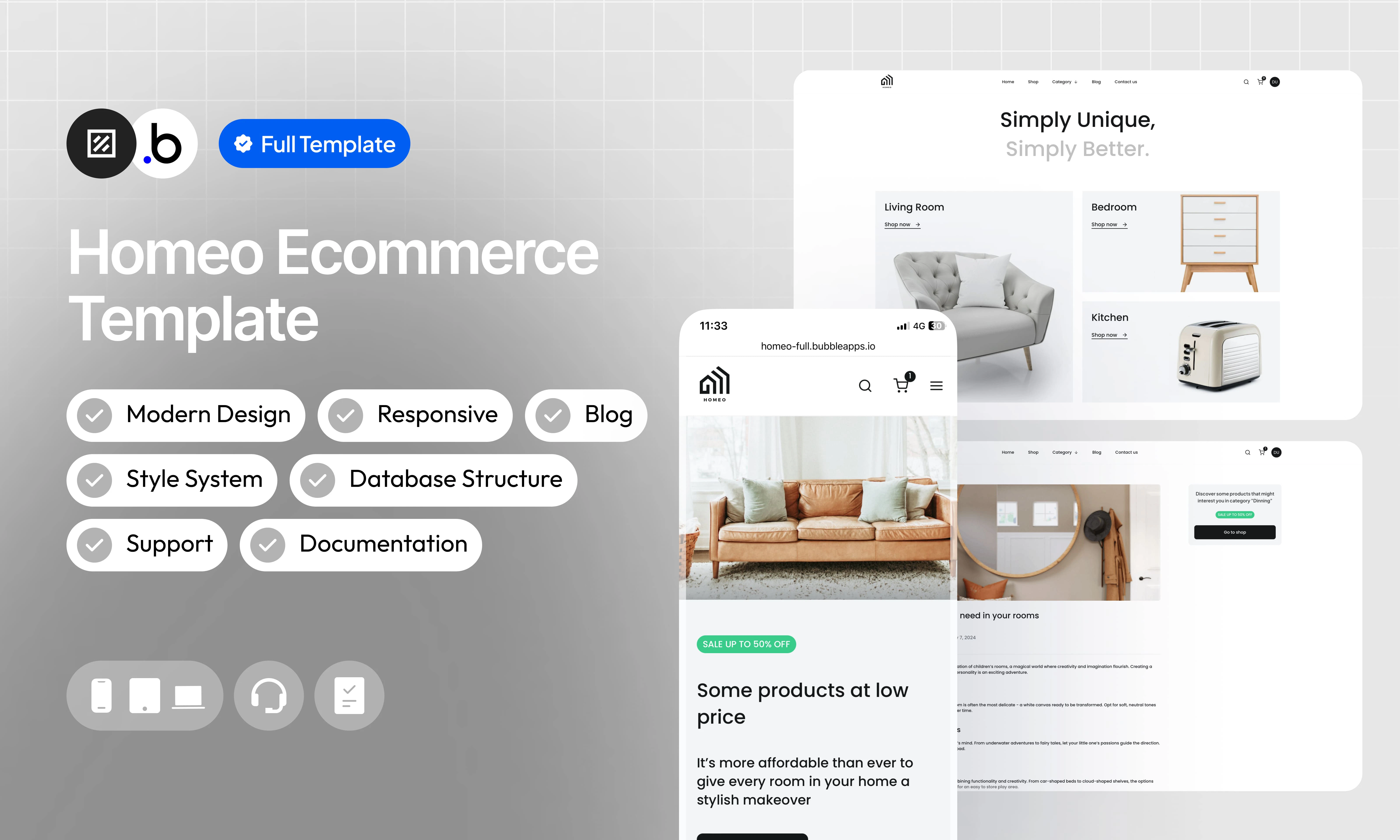
Check out our e-commerce template for home furniture – a modern solution to launch your own online store. Fully responsive, this template offers dynamic content and a style system to simplify customization. With blog integration, customer account verification and dedicated support, it’s the perfect tool to create an exceptional shopping experience.
## Functionalities
Showcase your products in an attractive way and easily change information with simple content management.
Manage your store with ease with an intuitive admin dashboard. Control products, orders, and track performance at a glance.
Save time in design with a predefined style system. Harmonize the look of your shop effortlessly.
Simplify inventory management with an automatic update with each purchase. Avoid out of stock and ensure a smooth shopping experience.
Enrich your online store with an integrated blog. Share tips, trends and engage your audience to create a community around your brand.
We provide comprehensive documentation to guide you through every aspect of your template. Whether you are a novice or an expert, you will find detailed instructions to make the most of your online store.
Enjoy an exceptional user experience, whether for customers browsing your store or for administrators managing the backend. Homeo adapts to all screens, ensuring smooth operation on all devices.
I'm here to help. Whether you need to add additional features or are experiencing technical issues, I'm available to support you every step of the way.
Ensure security and trust by integrating a customer account verification system. Offer your customers a secure and personalized shopping experience.
## Allow Access
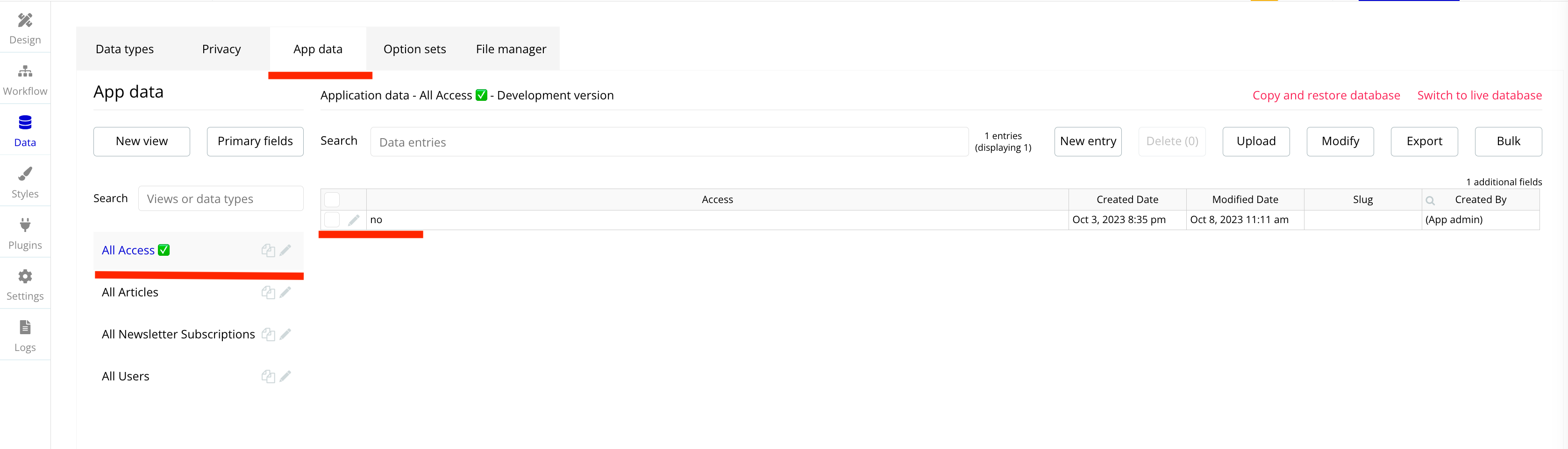
This section explains how to unlock the template’s features. The restriction is intentionally in place to prevent users from adding or modifying data in the preview version. This ensures that no sensitive or inappropriate content can be displayed to other people viewing the template in the Bubble Marketplace.
In order to access all the features of this template, you will need to purchase it and follow the following steps.
## Overview
Check out our e-commerce template for home furniture – a modern solution to launch your own online store. Fully responsive, this template offers dynamic content and a style system to simplify customization. With blog integration, customer account verification and dedicated support, it’s the perfect tool to create an exceptional shopping experience.
## Functionalities
Showcase your products in an attractive way and easily change information with simple content management.
Manage your store with ease with an intuitive admin dashboard. Control products, orders, and track performance at a glance.
Save time in design with a predefined style system. Harmonize the look of your shop effortlessly.
Simplify inventory management with an automatic update with each purchase. Avoid out of stock and ensure a smooth shopping experience.
Enrich your online store with an integrated blog. Share tips, trends and engage your audience to create a community around your brand.
We provide comprehensive documentation to guide you through every aspect of your template. Whether you are a novice or an expert, you will find detailed instructions to make the most of your online store.
Enjoy an exceptional user experience, whether for customers browsing your store or for administrators managing the backend. Homeo adapts to all screens, ensuring smooth operation on all devices.
I'm here to help. Whether you need to add additional features or are experiencing technical issues, I'm available to support you every step of the way.
Ensure security and trust by integrating a customer account verification system. Offer your customers a secure and personalized shopping experience.
## Allow Access
This section explains how to unlock the template’s features. The restriction is intentionally in place to prevent users from adding or modifying data in the preview version. This ensures that no sensitive or inappropriate content can be displayed to other people viewing the template in the Bubble Marketplace.
In order to access all the features of this template, you will need to purchase it and follow the following steps.


 ## Pages
Home page with all products posted, with a newsletter subscription system
The page that groups all the products you add to your shopping cart
The page that allows you to enter the customer’s information for the validation of his order (Delivery address, billing address and payment)
The page that lists all blog posts with a filtering system
The page details the specific article with a photo, a description and the author of the article
The page where customers can contact you and ask specific questions. The platform administrator receives an email when each form is sent.
The page dedicated to platform administrators where they can manage the entire platform (product creation, reduction, order management, user management, etc.)
The page dedicated to customers registered on the platform, where they can manage their information, orders and add products as favorites.
The page that allows users to log in (client and administrators)
The page that details the product with photos, colors and sizes available and a description.
The page that allows to find precisely a product thanks to a filtering system.
The page that allows users to register for the platform (client and administrators)
The page that allows the verification of the email of the users thanks to a code sent by email.
The page that allows users to reset their password
Totally personalized error page
## Reusable Elements
A collection of shared components built to be used across multiple pages, helping maintain design consistency while making updates and scaling more efficient.
A reusable element creates an element that contains other elements, like a group, that can be used in more than one place. This is useful when reusing the same elements often. Using reusable elements keeps the app smaller and makes it easier to edit.
This reusable element is located at the top of each page and contains the logo of the model, the different types of products, buttons to connect and register, an input to search for products by name. An icon (Menu) is hidden and appears depending on the size of the page, it contains all the elements mentioned above.
This reusable element is located at the bottom of each page and contains links that redirect to different pages such as Contact\_us, Blog\_page, etc.
The FAQ is positioned on certain pages such as the Cart so that customers find certain answers to their questions.
The Popup Access serves to inform the user who previews the template that some features are limited until the purchase of the template.
The Popup Credentials allows the user to change their password and email address.
## Workflows
This structure uses folders and colors to organize workflows clearly, improve readability, and ensure consistent logic management across the application.
In Bubble, workflows define how an application behaves. They are triggered by events and run actions that manage data, navigation, and user interactions.
### Folders
Folders are structured by functional category, with each folder grouping workflows related to a specific domain of the application. This approach ensures that every type of logic has its dedicated space, making the overall workflow architecture clearer, more organized, and easier to maintain.
This folder contains workflows responsible for creating, updating, deleting, and managing data within the application. It centralizes all logic that interacts directly with the database to ensure structured and consistent data handling.
This folder groups workflows that control page transitions, redirects, and user journeys. It defines how users move through the application and ensures a clear and predictable flow.
This folder includes workflows that depend on external plugins or third party integrations. It isolates plugin related logic to keep the core application structure clean and organized.
This folder contains workflows that affect the user interface, such as showing or hiding elements, triggering animations, or dynamically updating what the user sees. It manages front end behavior without altering stored data.
This folder groups workflows that manage temporary front end data stored in custom states. It is used to control dynamic interactions and interface logic without impacting the database.
Custom states are variables that you can save on any element on the page, including the page itself. They let you store data temporarily that is reset when the page is reloaded. This is useful when you need your app to remember some information that you don’t need to store permanently in the database.
This folder includes workflows dedicated to sending automated or transactional emails. It centralizes communication logic to ensure consistency and easier maintenance.
This folder contains workflows that handle external API calls and data exchanges with outside services. It organizes integration logic and keeps external communication clearly separated from internal processes.
### Colors
Colors are used as visual indicators to distinguish workflow types and intentions. Each color corresponds to a specific category of action, allowing quick recognition of the workflow’s purpose and improving readability across the entire logic structure.
Blue is used for workflows involving navigation, such as redirects to other pages or links.
Green indicates workflows involving the database, such as creating or updating data in the database or the registration/connection system.
Red indicates workflows that have an impact on deleting data or resetting values.
Orange is reserved for visual elements, such as showing or disappearing pop-ups, floating groups, and other such interactive elements.
This color is reserved for elements related to APIs and Plugins.
The Cyan color indicates specific interactions triggered by custom events or custom states.
Brown is use for email send
## Datatypes
The database consists of different **data types** that you as the developer plan and set up. Data types are like containers that hold specific types of information and each data type is made up of **fields** where that information is stored.
### Access ✅
| Field Name | Type | Note |
| ---------- | ------ | -------------------------------------------------------------- |
| Access ✅ | yes/no | Whether or not certain features of the template are accessible |
### User
| Field Name | Type | Note |
| ----------------- | ---------------------------- | ------------------------------------------------------------- |
| First Name | `text` | Contains the user’s first name |
| Last Name | `text` | Contains the user’s last name |
| Phone | `number` | Contains the user’s phone number |
| Blog Liked | `List of Blog` | List of Article liked by the user |
| Blog Viewed | `List of Blog` | List of Article Viewed by the user |
| Account Type | `Account Type (Option Sets)` | Contains the user’s account type |
| Verification Code | `text` | Contains the verification code received by the user |
| Verified | `yes/no` | Indicates whether the user’s account has been verified or not |
| Expiration Code | `date` | Contains the verification period |
| Wishlist | `List of Products` | Contains products saved as favorites by the user |
### Shipping Address
| Field Name | Type | Note |
| ----------------------- | -------- | ------------------------------------------------------------- |
| Shipping Country | `text` | Contains the user’s country of shipping |
| Shipping Street Address | `text` | Contains the user’s shipping street |
| Shipping City | `text` | Contains the user’s shipping city |
| Shipping Postal Code | `text` | Contains the user’s shipping postal code |
| Shipping First Name | `text` | Contains the first name of the user who receives the delivery |
| Shipping Last Name | `text` | Contains the last name of the user receiving the delivery |
| Shipping Phone | `number` | Contains the phone number of the user receiving the delivery |
### Billing Address
| Field Name | Type | Note |
| ---------------------- | ------ | ------------------------------------------------------------ |
| Billing Country | `text` | Contains the country of the user’s billing address |
| Billing Street Address | `text` | Contains the billing address street |
| Billing City | `text` | Contains the city of the user’s billing address |
| Billing Postal Code | `text` | Contains the postal code of the user’s billing address |
| Billing First Name | `text` | Contains the first name of the user who receives the invoice |
| Billing Last Name | `text` | Contains the last name of the user who receives the invoice |
### Product
| Field Name | Type | Note |
| ---------------- | ------------------------ | -------------------------------------------------------------------------------------------------------- |
| Product Name | `text` | Contains the name of the product |
| Category | `Category (Option Sets)` | Contains the type of product |
| Price | `number` | Contains the initial price of the product |
| Description | `text` | Contains the full product description |
| Images | `List of Images` | Contains all images of the product |
| Measure | `text` | Contains the measure of the product |
| Published | `yes/no` | Indicates if the product has been published and is visible to customers |
| Discount | `number` | Contains the discount applied on the price |
| Quantity | `number` | Contains the product's quantity |
| Quantity Updated | `number` | Contains the quantity selected by the user and allows us to subtract it from the quantity of the product |
### Blog
| Field Name | Type | Note |
| ---------- | ------------------------ | ------------------------------------------------------------------------ |
| Article | `text` | Contains the main content of the Article |
| Category | `Category (Option Sets)` | Contains the category of this article |
| Likes | `number` | Contains the number of likes for this article |
| Main Image | `image` | Contains the main image of this article |
| Publish | `yes/no` | Indicates if this article has been published and is visible to customers |
| Title | `text` | Contains the title of this article |
| Views | `number` | Contains the number of views for this article |
### Coupon
| Field Name | Type | Note |
| ---------- | -------- | ------------------------------------- |
| Code | `text` | Contains the coupon code |
| Value | `number` | Contains the value of the coupon code |
### Cart
| Field Name | Type | Note |
| ---------------- | ------------------------------- | --------------------------------------------------------------------- |
| Product | `Product ID` | Contains the product place in the shopping cart by the user |
| Coupon Code | `text` | Contains the the coupon code used by the user |
| Coupon | `number` | Contains the value of the coupon used by the user in percent (%) |
| Quantity | `number` | Contains the quantity of the product selected by the user |
| Delivery Option | `Delivery Option (Option Sets)` | Contains the delivery option choose by the user |
| Discount | `number` | Contains the value of the coupon used by the user formatted in number |
| Product Discount | `number` | Contains the value of the product discount formatted in number |
| Ordered | `yes/no` | Indicates whether this shopping cart has been ordered or not |
| Subtotal | `number` | Contains the total of the shopping cart (excluding other fees) |
### Order
| Field Name | Type | Note |
| ---------------- | ------------------------------- | ------------------------------------------------------ |
| Billing Address | `Billing Address ID` | Contains the billing address selected by the user |
| Shipping Address | `Shipping Address ID` | Contains the shipping address selected by the user |
| Cart | `List of Carts` | Contains all the details of the shopping cart ordered |
| Delivery Option | `Delivery Option (Option Sets)` | Contains the delivery option selected by the user |
| Order Status | `Order Status (Option Sets)` | Indicates the status of the order |
| Total | `number` | Contains the total amount of the order (fees included) |
### Reviews
| Field Name | Type | Note |
| ---------- | ------------ | ---------------------------------------- |
| Product | `Product ID` | Contains the product that has been rated |
| Comments | `text` | Contains the comment left by the user |
| Rating | `number` | Contains the note left by the user |
### Newsletter Subscriptions
| Field Name | Type | Note |
| ---------- | ------ | --------------------------------------------------------------- |
| Email | `text` | Contains the email of the user who subscribed to the Newsletter |
| Name | `text` | Contains the name of the user who subscribed to the Newsletter |
## Option Sets
This section covers option sets, used to store a static list of options in a database-like structure
Option sets let you set up different types of static options in a database-like structure, but without using the database. This is useful to store information like days of the week, marital status, colors, states, countries and other data that you want to load quickly and that’s rarely updated.
### Account Type
Defines the account type of a registered user on the platform. Used to differentiate access levels and permissions between customers and administrators.
| Attributes | Type | Note |
| ---------- | ------ | ---------------------------------------------------------------------- |
| Display | `text` | Label displayed to represent the account type (e.g. "Client", "Admin") |
* Client
* Admin
### Dashboard Admin
Lists the navigation sections available in the admin dashboard. Each option corresponds to a menu item allowing the admin to manage a specific part of the platform.
| Attributes | Type | Note |
| ---------- | ------ | --------------------------------------------------------------- |
| Display | `text` | Label displayed in the admin dashboard navigation menu |
| Icon | `text` | Name of the Feather Icons icon associated with the menu section |
* Dashboard
* Products
* Blog
* Orders
* Users
* Reviews
* Newsletter
* Settings
### Dashboard Client
Lists the navigation sections available in the client dashboard. Each option corresponds to a menu item allowing the customer to manage their personal information and activity on the platform.
| Attributes | Type | Note |
| ---------- | ------ | ------------------------------------------------------- |
| Display | `text` | Label displayed in the client dashboard navigation menu |
* Account
* Address
* Orders
* Wishlist
### FAQ
Groups the frequently asked questions displayed to customers, notably on the Cart page. Each option pairs a question with its corresponding answer.
| Attributes | Type | Note |
| ---------- | ------ | ------------------------------------------------- |
| Display | `text` | Text of the question displayed in the FAQ section |
| Answer | `text` | Text of the answer associated with the question |
* What countries do you ship to ?
* What is your return/exchange policy ?
* How long will it take to get my order ?
* What payment methods do you accept ?
* How long does order processing take ?
* What if my order arrives damaged ?
### Order Status
Defines the different possible statuses of an order. Used in the admin dashboard to track and update the progress of customer orders.
| Attributes | Type | Note |
| ---------- | ------ | ------------------------------------------------------------------------------------------------- |
| Display | `text` | Status label displayed to both the administrator and the customer (e.g. "Completed", "Delivered") |
* Completed
* Cancelled
* Delivered
### Delivery Option
Defines the different shipping options offered to the customer during checkout. Each option includes a cost and an estimated delivery time in days.
| Attributes | Type | Note |
| ---------- | -------- | ------------------------------------------------------------------------------------------------- |
| Display | `text` | Label of the delivery option displayed to the customer (e.g. "Free Shipping", "Express Shipping") |
| Cost | `number` | Cost of the delivery expressed as a number in the store currency (e.g. 0 for free shipping) |
| Max Delay | `number` | Maximum estimated delivery time expressed in number of business days |
| Min Delay | `number` | Minimum estimated delivery time expressed in number of business days |
* Free Shipping
* Standard Shipping
* Express Shipping
### Blog Table
Defines the navigation tabs in the Blog section of the admin dashboard. Allows the admin to switch between the list of existing articles and the creation of a new one.
| Attributes | Type | Note |
| ---------- | ------ | --------------------------------------------------------------------------------------- |
| Display | `text` | Label of the tab displayed in the blog management interface (e.g. "Articles", "Create") |
* Articles
* Create
### Credentials
Defines the two types of credentials that a user can update from the Credentials Popup in their dashboard. Used to distinguish between updating the email address and updating the password.
| Attributes | Type | Note |
| ---------- | ------ | ------------------------------------------------------------------------------------- |
| Display | `text` | Label of the credential field displayed in the update form (e.g. "Email", "Password") |
* Email
* Password
### Category
Defines the product and blog article categories available on the platform. Used to filter and organize products in the shop and articles in the blog.
| Attributes | Type | Note |
| ---------- | ------ | ---------------------------------------------------------------------------------------------------------------- |
| Display | `text` | Label of the category displayed in filters, creation forms, and navigation pages (e.g. "Living Room", "Bedroom") |
* Living Room
* Bedroom
* Bathroom
* Dinning
* Outdoor
* Kitchen
### Product Details
Defines the tabs available on the product page, allowing the user to navigate between the full product description and customer reviews left by other buyers.
| Attributes | Type | Note |
| ---------- | ------ | ------------------------------------------------------------------------------ |
| Display | `text` | Label of the tab displayed on the product page (e.g. "Description", "Reviews") |
* Description
* Reviews
## Plugins
An overview of the external plugins integrated into the application to extend its native capabilities and enhance specific features or functionalities.
You might need to install these plugins when using the template.
### Feather Icons
Free
Visual icon elements from the Feather Icons suite ([https://feathericons.com/](https://feathericons.com/)). Customize the color, fill color, and stroke width. Elements should maintain the standard Bubble element properties.
### Animated Rating Stars
Free
Add animated star rating input with configurable size, colors, and default value. Supports static and interactive modes, user interaction events, responsive layout, and rating reset actions.
### Chart Element
Free
Add a chart element to your application. You can display line, bar charts or polar charts.
### Reveal & Hide Password
Free
Toggle password visibility in Bubble input fields using a reveal/hide icon. Supports icon size, color, position, default visibility state, multiple inputs, and dynamic control with minimal setup.
### Multi-File Uploader - Dropzone
Free
Enables your users to upload more than one file at once. The input returns a list of files.
### Rich Text Editor
Free
Enable your users to write rich, formatted text in an input. Compatible with text elements and email.
## Refund Policy
This policy defines the conditions under which refunds may be requested for our products. It distinguishes between templates distributed through the Bubble Marketplace and the Brikl Chrome Extension, specifying the applicable deadlines, eligibility requirements, and usage-related limitations for each.
## Support
Your satisfaction is our priority. Do not hesitate to contact us if you have any questions or problems.
[support@brikl.co](mailto:support@brikl.co)
[https://www.brikl.co/](https://www.brikl.co/)
## Pages
Home page with all products posted, with a newsletter subscription system
The page that groups all the products you add to your shopping cart
The page that allows you to enter the customer’s information for the validation of his order (Delivery address, billing address and payment)
The page that lists all blog posts with a filtering system
The page details the specific article with a photo, a description and the author of the article
The page where customers can contact you and ask specific questions. The platform administrator receives an email when each form is sent.
The page dedicated to platform administrators where they can manage the entire platform (product creation, reduction, order management, user management, etc.)
The page dedicated to customers registered on the platform, where they can manage their information, orders and add products as favorites.
The page that allows users to log in (client and administrators)
The page that details the product with photos, colors and sizes available and a description.
The page that allows to find precisely a product thanks to a filtering system.
The page that allows users to register for the platform (client and administrators)
The page that allows the verification of the email of the users thanks to a code sent by email.
The page that allows users to reset their password
Totally personalized error page
## Reusable Elements
A collection of shared components built to be used across multiple pages, helping maintain design consistency while making updates and scaling more efficient.
A reusable element creates an element that contains other elements, like a group, that can be used in more than one place. This is useful when reusing the same elements often. Using reusable elements keeps the app smaller and makes it easier to edit.
This reusable element is located at the top of each page and contains the logo of the model, the different types of products, buttons to connect and register, an input to search for products by name. An icon (Menu) is hidden and appears depending on the size of the page, it contains all the elements mentioned above.
This reusable element is located at the bottom of each page and contains links that redirect to different pages such as Contact\_us, Blog\_page, etc.
The FAQ is positioned on certain pages such as the Cart so that customers find certain answers to their questions.
The Popup Access serves to inform the user who previews the template that some features are limited until the purchase of the template.
The Popup Credentials allows the user to change their password and email address.
## Workflows
This structure uses folders and colors to organize workflows clearly, improve readability, and ensure consistent logic management across the application.
In Bubble, workflows define how an application behaves. They are triggered by events and run actions that manage data, navigation, and user interactions.
### Folders
Folders are structured by functional category, with each folder grouping workflows related to a specific domain of the application. This approach ensures that every type of logic has its dedicated space, making the overall workflow architecture clearer, more organized, and easier to maintain.
This folder contains workflows responsible for creating, updating, deleting, and managing data within the application. It centralizes all logic that interacts directly with the database to ensure structured and consistent data handling.
This folder groups workflows that control page transitions, redirects, and user journeys. It defines how users move through the application and ensures a clear and predictable flow.
This folder includes workflows that depend on external plugins or third party integrations. It isolates plugin related logic to keep the core application structure clean and organized.
This folder contains workflows that affect the user interface, such as showing or hiding elements, triggering animations, or dynamically updating what the user sees. It manages front end behavior without altering stored data.
This folder groups workflows that manage temporary front end data stored in custom states. It is used to control dynamic interactions and interface logic without impacting the database.
Custom states are variables that you can save on any element on the page, including the page itself. They let you store data temporarily that is reset when the page is reloaded. This is useful when you need your app to remember some information that you don’t need to store permanently in the database.
This folder includes workflows dedicated to sending automated or transactional emails. It centralizes communication logic to ensure consistency and easier maintenance.
This folder contains workflows that handle external API calls and data exchanges with outside services. It organizes integration logic and keeps external communication clearly separated from internal processes.
### Colors
Colors are used as visual indicators to distinguish workflow types and intentions. Each color corresponds to a specific category of action, allowing quick recognition of the workflow’s purpose and improving readability across the entire logic structure.
Blue is used for workflows involving navigation, such as redirects to other pages or links.
Green indicates workflows involving the database, such as creating or updating data in the database or the registration/connection system.
Red indicates workflows that have an impact on deleting data or resetting values.
Orange is reserved for visual elements, such as showing or disappearing pop-ups, floating groups, and other such interactive elements.
This color is reserved for elements related to APIs and Plugins.
The Cyan color indicates specific interactions triggered by custom events or custom states.
Brown is use for email send
## Datatypes
The database consists of different **data types** that you as the developer plan and set up. Data types are like containers that hold specific types of information and each data type is made up of **fields** where that information is stored.
### Access ✅
| Field Name | Type | Note |
| ---------- | ------ | -------------------------------------------------------------- |
| Access ✅ | yes/no | Whether or not certain features of the template are accessible |
### User
| Field Name | Type | Note |
| ----------------- | ---------------------------- | ------------------------------------------------------------- |
| First Name | `text` | Contains the user’s first name |
| Last Name | `text` | Contains the user’s last name |
| Phone | `number` | Contains the user’s phone number |
| Blog Liked | `List of Blog` | List of Article liked by the user |
| Blog Viewed | `List of Blog` | List of Article Viewed by the user |
| Account Type | `Account Type (Option Sets)` | Contains the user’s account type |
| Verification Code | `text` | Contains the verification code received by the user |
| Verified | `yes/no` | Indicates whether the user’s account has been verified or not |
| Expiration Code | `date` | Contains the verification period |
| Wishlist | `List of Products` | Contains products saved as favorites by the user |
### Shipping Address
| Field Name | Type | Note |
| ----------------------- | -------- | ------------------------------------------------------------- |
| Shipping Country | `text` | Contains the user’s country of shipping |
| Shipping Street Address | `text` | Contains the user’s shipping street |
| Shipping City | `text` | Contains the user’s shipping city |
| Shipping Postal Code | `text` | Contains the user’s shipping postal code |
| Shipping First Name | `text` | Contains the first name of the user who receives the delivery |
| Shipping Last Name | `text` | Contains the last name of the user receiving the delivery |
| Shipping Phone | `number` | Contains the phone number of the user receiving the delivery |
### Billing Address
| Field Name | Type | Note |
| ---------------------- | ------ | ------------------------------------------------------------ |
| Billing Country | `text` | Contains the country of the user’s billing address |
| Billing Street Address | `text` | Contains the billing address street |
| Billing City | `text` | Contains the city of the user’s billing address |
| Billing Postal Code | `text` | Contains the postal code of the user’s billing address |
| Billing First Name | `text` | Contains the first name of the user who receives the invoice |
| Billing Last Name | `text` | Contains the last name of the user who receives the invoice |
### Product
| Field Name | Type | Note |
| ---------------- | ------------------------ | -------------------------------------------------------------------------------------------------------- |
| Product Name | `text` | Contains the name of the product |
| Category | `Category (Option Sets)` | Contains the type of product |
| Price | `number` | Contains the initial price of the product |
| Description | `text` | Contains the full product description |
| Images | `List of Images` | Contains all images of the product |
| Measure | `text` | Contains the measure of the product |
| Published | `yes/no` | Indicates if the product has been published and is visible to customers |
| Discount | `number` | Contains the discount applied on the price |
| Quantity | `number` | Contains the product's quantity |
| Quantity Updated | `number` | Contains the quantity selected by the user and allows us to subtract it from the quantity of the product |
### Blog
| Field Name | Type | Note |
| ---------- | ------------------------ | ------------------------------------------------------------------------ |
| Article | `text` | Contains the main content of the Article |
| Category | `Category (Option Sets)` | Contains the category of this article |
| Likes | `number` | Contains the number of likes for this article |
| Main Image | `image` | Contains the main image of this article |
| Publish | `yes/no` | Indicates if this article has been published and is visible to customers |
| Title | `text` | Contains the title of this article |
| Views | `number` | Contains the number of views for this article |
### Coupon
| Field Name | Type | Note |
| ---------- | -------- | ------------------------------------- |
| Code | `text` | Contains the coupon code |
| Value | `number` | Contains the value of the coupon code |
### Cart
| Field Name | Type | Note |
| ---------------- | ------------------------------- | --------------------------------------------------------------------- |
| Product | `Product ID` | Contains the product place in the shopping cart by the user |
| Coupon Code | `text` | Contains the the coupon code used by the user |
| Coupon | `number` | Contains the value of the coupon used by the user in percent (%) |
| Quantity | `number` | Contains the quantity of the product selected by the user |
| Delivery Option | `Delivery Option (Option Sets)` | Contains the delivery option choose by the user |
| Discount | `number` | Contains the value of the coupon used by the user formatted in number |
| Product Discount | `number` | Contains the value of the product discount formatted in number |
| Ordered | `yes/no` | Indicates whether this shopping cart has been ordered or not |
| Subtotal | `number` | Contains the total of the shopping cart (excluding other fees) |
### Order
| Field Name | Type | Note |
| ---------------- | ------------------------------- | ------------------------------------------------------ |
| Billing Address | `Billing Address ID` | Contains the billing address selected by the user |
| Shipping Address | `Shipping Address ID` | Contains the shipping address selected by the user |
| Cart | `List of Carts` | Contains all the details of the shopping cart ordered |
| Delivery Option | `Delivery Option (Option Sets)` | Contains the delivery option selected by the user |
| Order Status | `Order Status (Option Sets)` | Indicates the status of the order |
| Total | `number` | Contains the total amount of the order (fees included) |
### Reviews
| Field Name | Type | Note |
| ---------- | ------------ | ---------------------------------------- |
| Product | `Product ID` | Contains the product that has been rated |
| Comments | `text` | Contains the comment left by the user |
| Rating | `number` | Contains the note left by the user |
### Newsletter Subscriptions
| Field Name | Type | Note |
| ---------- | ------ | --------------------------------------------------------------- |
| Email | `text` | Contains the email of the user who subscribed to the Newsletter |
| Name | `text` | Contains the name of the user who subscribed to the Newsletter |
## Option Sets
This section covers option sets, used to store a static list of options in a database-like structure
Option sets let you set up different types of static options in a database-like structure, but without using the database. This is useful to store information like days of the week, marital status, colors, states, countries and other data that you want to load quickly and that’s rarely updated.
### Account Type
Defines the account type of a registered user on the platform. Used to differentiate access levels and permissions between customers and administrators.
| Attributes | Type | Note |
| ---------- | ------ | ---------------------------------------------------------------------- |
| Display | `text` | Label displayed to represent the account type (e.g. "Client", "Admin") |
* Client
* Admin
### Dashboard Admin
Lists the navigation sections available in the admin dashboard. Each option corresponds to a menu item allowing the admin to manage a specific part of the platform.
| Attributes | Type | Note |
| ---------- | ------ | --------------------------------------------------------------- |
| Display | `text` | Label displayed in the admin dashboard navigation menu |
| Icon | `text` | Name of the Feather Icons icon associated with the menu section |
* Dashboard
* Products
* Blog
* Orders
* Users
* Reviews
* Newsletter
* Settings
### Dashboard Client
Lists the navigation sections available in the client dashboard. Each option corresponds to a menu item allowing the customer to manage their personal information and activity on the platform.
| Attributes | Type | Note |
| ---------- | ------ | ------------------------------------------------------- |
| Display | `text` | Label displayed in the client dashboard navigation menu |
* Account
* Address
* Orders
* Wishlist
### FAQ
Groups the frequently asked questions displayed to customers, notably on the Cart page. Each option pairs a question with its corresponding answer.
| Attributes | Type | Note |
| ---------- | ------ | ------------------------------------------------- |
| Display | `text` | Text of the question displayed in the FAQ section |
| Answer | `text` | Text of the answer associated with the question |
* What countries do you ship to ?
* What is your return/exchange policy ?
* How long will it take to get my order ?
* What payment methods do you accept ?
* How long does order processing take ?
* What if my order arrives damaged ?
### Order Status
Defines the different possible statuses of an order. Used in the admin dashboard to track and update the progress of customer orders.
| Attributes | Type | Note |
| ---------- | ------ | ------------------------------------------------------------------------------------------------- |
| Display | `text` | Status label displayed to both the administrator and the customer (e.g. "Completed", "Delivered") |
* Completed
* Cancelled
* Delivered
### Delivery Option
Defines the different shipping options offered to the customer during checkout. Each option includes a cost and an estimated delivery time in days.
| Attributes | Type | Note |
| ---------- | -------- | ------------------------------------------------------------------------------------------------- |
| Display | `text` | Label of the delivery option displayed to the customer (e.g. "Free Shipping", "Express Shipping") |
| Cost | `number` | Cost of the delivery expressed as a number in the store currency (e.g. 0 for free shipping) |
| Max Delay | `number` | Maximum estimated delivery time expressed in number of business days |
| Min Delay | `number` | Minimum estimated delivery time expressed in number of business days |
* Free Shipping
* Standard Shipping
* Express Shipping
### Blog Table
Defines the navigation tabs in the Blog section of the admin dashboard. Allows the admin to switch between the list of existing articles and the creation of a new one.
| Attributes | Type | Note |
| ---------- | ------ | --------------------------------------------------------------------------------------- |
| Display | `text` | Label of the tab displayed in the blog management interface (e.g. "Articles", "Create") |
* Articles
* Create
### Credentials
Defines the two types of credentials that a user can update from the Credentials Popup in their dashboard. Used to distinguish between updating the email address and updating the password.
| Attributes | Type | Note |
| ---------- | ------ | ------------------------------------------------------------------------------------- |
| Display | `text` | Label of the credential field displayed in the update form (e.g. "Email", "Password") |
* Email
* Password
### Category
Defines the product and blog article categories available on the platform. Used to filter and organize products in the shop and articles in the blog.
| Attributes | Type | Note |
| ---------- | ------ | ---------------------------------------------------------------------------------------------------------------- |
| Display | `text` | Label of the category displayed in filters, creation forms, and navigation pages (e.g. "Living Room", "Bedroom") |
* Living Room
* Bedroom
* Bathroom
* Dinning
* Outdoor
* Kitchen
### Product Details
Defines the tabs available on the product page, allowing the user to navigate between the full product description and customer reviews left by other buyers.
| Attributes | Type | Note |
| ---------- | ------ | ------------------------------------------------------------------------------ |
| Display | `text` | Label of the tab displayed on the product page (e.g. "Description", "Reviews") |
* Description
* Reviews
## Plugins
An overview of the external plugins integrated into the application to extend its native capabilities and enhance specific features or functionalities.
You might need to install these plugins when using the template.
### Feather Icons
Free
Visual icon elements from the Feather Icons suite ([https://feathericons.com/](https://feathericons.com/)). Customize the color, fill color, and stroke width. Elements should maintain the standard Bubble element properties.
### Animated Rating Stars
Free
Add animated star rating input with configurable size, colors, and default value. Supports static and interactive modes, user interaction events, responsive layout, and rating reset actions.
### Chart Element
Free
Add a chart element to your application. You can display line, bar charts or polar charts.
### Reveal & Hide Password
Free
Toggle password visibility in Bubble input fields using a reveal/hide icon. Supports icon size, color, position, default visibility state, multiple inputs, and dynamic control with minimal setup.
### Multi-File Uploader - Dropzone
Free
Enables your users to upload more than one file at once. The input returns a list of files.
### Rich Text Editor
Free
Enable your users to write rich, formatted text in an input. Compatible with text elements and email.
## Refund Policy
This policy defines the conditions under which refunds may be requested for our products. It distinguishes between templates distributed through the Bubble Marketplace and the Brikl Chrome Extension, specifying the applicable deadlines, eligibility requirements, and usage-related limitations for each.
## Support
Your satisfaction is our priority. Do not hesitate to contact us if you have any questions or problems.
[support@brikl.co](mailto:support@brikl.co)
[https://www.brikl.co/](https://www.brikl.co/)