> ## Documentation Index
> Fetch the complete documentation index at: https://docs.brikl.co/llms.txt
> Use this file to discover all available pages before exploring further.
# Warpspeed
Advanced Level : High level of Bubble experience and complex design, workflow and data requirements.
 ## Overview
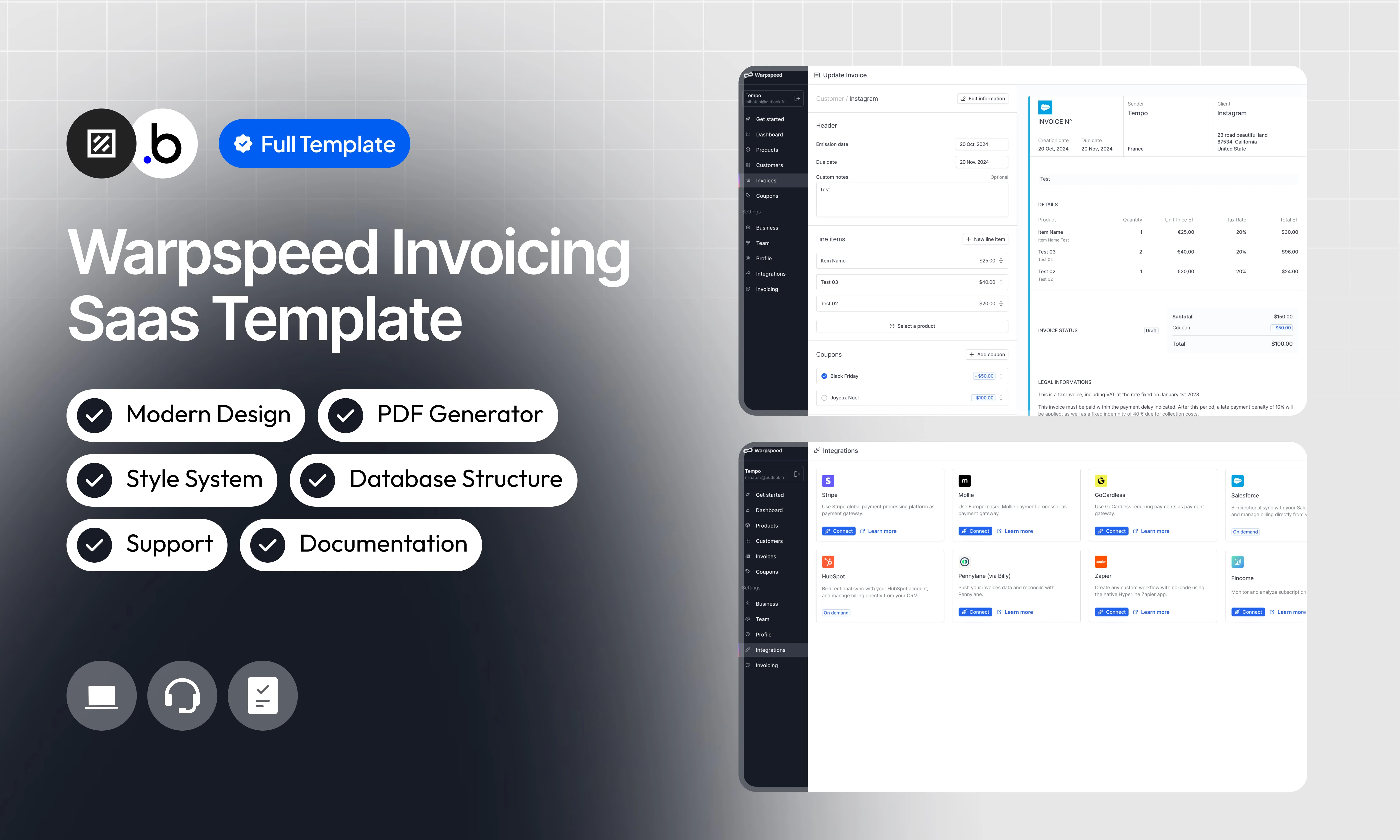
Optimize your financial management with this all-in-one SaaS billing template, designed to provide freelancers, agencies and small businesses with a complete and professional solution. With a dedicated customer interface, easily track your customers' information, apply specific taxes, and keep all essential data centralized in one place.\
\
Manage your products in an organized way with a customizable product creation feature. Define specific product details, pricing and options, and quickly apply them to your invoices for time-saving and greater accuracy.\
\
Boost your sales with the creation of discount coupons, a powerful feature to retain your customers and boost your promotions. Create custom coupons that you can apply directly to invoices, allowing your customers to take advantage of special discounts in a few clicks.\
\
Finally, this template ensures a smooth and pleasant user experience. With intuitive design and full functionality, you can increase productivity while providing a professional image to your customers.
## Functionalities
Add, edit and track your customers' critical information in a dedicated interface. Easily access their data to customize your invoices and ensure smooth management.
Create products or services with specific descriptions, custom pricing and options. Keep an organized view and easily apply them to invoices.
Generate custom invoices by adjusting the details for each customer, including products, taxes and discounts, to meet their specific needs.
Export your invoices to PDF in one click. Ideal for archiving, printing or sending directly to your customers.
Create custom coupons to offer discounts to your customers. Apply them directly to invoices to boost your sales or build customer loyalty.
Allow multiple users to work on the platform with customized access. Each member can manage his own customers, products and invoices independently.
Automatically apply customer-specific taxes when generating invoices, ensuring perfect compliance and accuracy.
Enjoy a modern and clean design that simplifies navigation and makes invoice management enjoyable, even for beginners.
Keep track of all your transactions thanks to a dashboard that displays the complete history of invoices issued and their status (paid, pending, etc.).
## Pages
The home page presents a main button to redirect users to the demo dashboard. This is the starting point to explore features or access your account.
This page allows users to log in to their account by entering their credentials (email and password). Automatic redirection to their dashboard is performed after a successful login.
The registration page allows new users to create an account. They can enter their information to start using the app and access the dashboard.
This is the main page where users manage their customers, products, invoices and coupons. It offers direct access to all the application’s features, all in a clear and intuitive interface.
The page that appears when an invalid URL is entered or a page is not found. It offers options to return to the home page or explore other sections of the application.
This page allows users to reset their password.
## Reusable Elements
A collection of shared components built to be used across multiple pages, helping maintain design consistency while making updates and scaling more efficient.
A reusable element creates an element that contains other elements, like a group, that can be used in more than one place. This is useful when reusing the same elements often. Using reusable elements keeps the app smaller and makes it easier to edit.
A reusable item that automatically generates a custom invoice based on the data transmitted. It dynamically adapts to customer information, selected products, taxes and discounts applied. Designed to be easily integrated into any page, this invoice template is both aesthetic and functional, offering a professional rendering ready to be downloaded as a PDF or sent to your customers.
## Workflows
This structure uses folders and colors to organize workflows clearly, improve readability, and ensure consistent logic management across the application.
In Bubble, workflows define how an application behaves. They are triggered by events and run actions that manage data, navigation, and user interactions.
### Folders
Folders are structured by functional category, with each folder grouping workflows related to a specific domain of the application. This approach ensures that every type of logic has its dedicated space, making the overall workflow architecture clearer, more organized, and easier to maintain.
This folder contains workflows responsible for creating, updating, deleting, and managing data within the application. It centralizes all logic that interacts directly with the database to ensure structured and consistent data handling.
This folder groups workflows that control page transitions, redirects, and user journeys. It defines how users move through the application and ensures a clear and predictable flow.
This folder includes workflows that depend on external plugins or third party integrations. It isolates plugin related logic to keep the core application structure clean and organized.
This folder contains workflows that affect the user interface, such as showing or hiding elements, triggering animations, or dynamically updating what the user sees. It manages front end behavior without altering stored data.
This folder groups workflows that manage temporary front end data stored in custom states. It is used to control dynamic interactions and interface logic without impacting the database.
Custom states are variables that you can save on any element on the page, including the page itself. They let you store data temporarily that is reset when the page is reloaded. This is useful when you need your app to remember some information that you don’t need to store permanently in the database.
This folder includes workflows dedicated to sending automated or transactional emails. It centralizes communication logic to ensure consistency and easier maintenance.
This folder contains workflows that handle external API calls and data exchanges with outside services. It organizes integration logic and keeps external communication clearly separated from internal processes.
### Colors
Colors are used as visual indicators to distinguish workflow types and intentions. Each color corresponds to a specific category of action, allowing quick recognition of the workflow’s purpose and improving readability across the entire logic structure.
Blue is used for workflows involving navigation, such as redirects to other pages or links.
Green indicates workflows involving the database, such as creating or updating data in the database or the registration/connection system.
Red indicates workflows that have an impact on deleting data or resetting values.
Orange is reserved for visual elements, such as showing or disappearing pop-ups, floating groups, and other such interactive elements.
This color is reserved for elements related to APIs and Plugins.
The Cyan color indicates specific interactions triggered by custom events or custom states.
Brown is use for email send
## Datatypes
The database consists of different **data types** that you as the developer plan and set up. Data types are like containers that hold specific types of information and each data type is made up of **fields** where that information is stored.
### User
| Field Name | Type | Note |
| ---------- | ----------------------------- | ------------------------------------------------ |
| Business | `Business ID` | **Contains the user’s business id** |
| Role | `User Role (Option Sets)` | **Determines the user’s role** |
| Status | `Member Status (Option Sets)` | **Determines the status of the user** |
| Demo | `yes/no` | Determines whether or not this is a demo account |
### Products
| Field Name | Type | Note |
| ----------- | ------------- | ---------------------------------------------------------------- |
| Business | `Business ID` | **Contains the id of the business to which the product belongs** |
| Description | `text` | Contains the description of the product |
| Name | `text` | Contains the name of the product |
| Price | `number` | Contains the price of the product |
| Demo | `yes/no` | Determines whether or not this is a demo product |
### Line Item Invoice
| Field Name | Type | Note |
| ----------- | ------------- | ------------------------------------------------------------------------ |
| Business | `Business ID` | **Contains the id of the business to which the item invoice belongs** |
| Customer | `Customer ID` | **Contains the id of the customer to whom the invoice item is assigned** |
| Invoice | `Invoice ID` | **Contains the invoice id to which the item invoice will be assigned** |
| Demo | `yes/no` | Determines whether or not this is a demo item invoice |
| Description | `text` | Contains the description of the item invoice |
| Name | `text` | Contains the name of the item invoice |
| Quantity | `number` | Contains the number of items |
| Total | `number` | Contains the sum of the unit price and the number of items |
| Unit Price | `number` | Contains the unit price of the item |
### Invoicing Settings
| Field Name | Type | Note |
| ---------------------- | -------- | --------------------------------------------------- |
| Additional Information | `text` | Contains additional billing terms information |
| Legal Information | `text` | Contains legal information related to your invoices |
| Payment Delay | `number` | Contains payment term in days |
### Invoices
| Field Name | Type | Note |
| ---------------- | ------------------------------ | ------------------------------------------------------------------- |
| Business | `Business ID` | **Contains the id of the business to which the invoice belongs** |
| Customer | `Customer ID` | **Contains the id of the customer to whom the invoice is assigned** |
| Invoice Status | `Invoice Status (Option Sets)` | **Determines the status of the invoice (draft, pending, paid ...)** |
| Invoice Type | `Invoice Type (Option Sets)` | **Determine the type of invoice (canva, demo, official...)** |
| Invoice Settings | `Invoice Settings ID` | **Contains the billing parameters id** |
| Line Items | `List ofLine Items` | **Contains the list of id items added to this invoice** |
| Coupon | `Coupon ID` | **Contains the coupon id applied on this invoice** |
| Custom Note | `text` | Contains a custom note for this invoice |
| Due Date | `date` | Contains the due date of this invoice |
| Emission Date | `date` | Contains the emission date of this invoice |
| Number | `number` | Contains the invoice number |
| Total | `number` | Contains the final invoice price |
### Coupon
| Field Name | Type | Note |
| ------------------- | --------------------------- | --------------------------------------------------------------- |
| Business | `Business ID` | **Contains the id of the business to which the coupon belongs** |
| Coupon Type | `Coupon Type (Option Sets)` | **Determine the type of coupon (fixed amount, percentage)** |
| Amount | `number` | Contains the fixed amount of the discount |
| Discount | `number` | Contains the percentage of the reduction |
| Coupon Used | `number` | Contains the number of times the coupon was used in an invoice |
| Description | `text` | Contains the coupon description |
| Name | `text` | Contains the coupon name |
| Redemption Deadline | `date` | Determines the deadline for the coupon to be used |
| Redemption Limit | `number` | Determines the coupon limit that can be used |
| Demo | `yes/no` | Determines whether or not this is a demo coupon |
### Customers
| Field Name | Type | Note |
| -------------------- | ----------------------------- | ----------------------------------------------------------------- |
| Business | `Business ID` | **Contains the id of the business to which the customer belongs** |
| Currency | `Currency (Option Sets)` | **Contains the currency used by the client** |
| Customer Type | `Customer Type (Option Sets)` | **Determines the type of client (individual, company)** |
| Language | `Language (Option Sets)` | **Determines the client language** |
| Address | `text` | Contains the customer’s address |
| Address Line 2 | `text` | Contains the customer's address line 2 |
| City | `text` | Contains the customer's city |
| Country | `text` | Contains the customer's country |
| Custom Payment Delay | `number` | Contains the customer's custom payment delay |
| Custom Tax Rate | `number` | Contains the customer's custom tax rate |
| Email | `text` | Contains the customer's email |
| Legal Name | `text` | Contains the customer's legal name |
| Name | `text` | Contains the customer's use name |
| Postal Code | `number` | Contains the customer's postal code |
| Tax Number | `text` | Contains the customer's tax number |
### Business
| Field Name | Type | Note |
| ---------------- | ------------------------ | ---------------------------------------------- |
| Invoice Settings | `Invoice Settings ID` | **Contains the billing parameters id** |
| Currency | `Currency (Option Sets)` | **Contains the currency used by the business** |
| Address | `text` | Contains the business’s address |
| Address Line 2 | `text` | Contains the business's address line 2 |
| City | `text` | Contains the business's city |
| Country | `text` | Contains the business's country |
| Legal Name | `text` | Contains the business's legal name |
| Logo | `file` | Contains the business's logo |
| Postal Code | `number` | Contains the business's postal code |
| Primary Color | `text` | Contains the business's primary color |
| Tax Number | `text` | Contains the business's tax number |
| Trade Name | `text` | Contains the business's trade name |
## Option Sets
This section covers option sets, used to store a static list of options in a database-like structure
Option sets let you set up different types of static options in a database-like structure, but without using the database. This is useful to store information like days of the week, marital status, colors, states, countries and other data that you want to load quickly and that’s rarely updated.
### App Tab
Main navigation tabs displayed in the application's menu.
| Attributes | Type | Note |
| ---------- | ---- | ----------------------------------------------- |
| Display | text | Main navigation tabs displayed in the app menu. |
| Icon | text | Visual icon associated with the tab (Iconify). |
* Get started
* Dashboard
* Products
* Customers
* Invoice
* Coupons
### App Settings
Settings categories accessible from the configuration panel.
| Attributes | Type | Note |
| ---------- | ---- | -------------------------------------------------- |
| Display | text | Label for the settings section. |
| Icon | text | Icon representing the settings category (Iconify). |
* Business
* Team
* Profile
* Integrations
* Invoicing
### Coupon Type
Type of discount applied by a coupon.
| Attributes | Type | Note |
| ---------- | ---- | --------------------------------------------- |
| Display | text | Discount method (fixed amount or percentage). |
* Fixed Amount
* Percentage
### Currency
Supported currencies used for pricing and billing.
| Attributes | Type | Note |
| ---------- | ---- | ----------------------------------- |
| Display | text | ISO currency code (EUR, CHF, USD…). |
* EUR
* USD
* JPY
* GBP
* AUD
* CAD
* CHF
### Customer Type
Classifies customers to adapt billing and communication.
| Attributes | Type | Note |
| ---------- | ---- | ----------------------------------------------------- |
| Display | text | Legal nature of the customer (company or individual). |
* Company
* Individual
### Invoice Status
Tracks the lifecycle stage of an invoice, with visual badge styling.
| Attributes | Type | Note |
| ---------------- | ---- | ------------------------------------------------------------- |
| Display | text | Current state of the invoice (Draft, Pending, Paid, Deleted). |
| Color | text | Badge text color (HEX). |
| Border Color | text | Badge border color (HEX). |
| Background Color | text | Badge background fill color (HEX). |
* Draft
* Pending
* Paid
* Deleted
### Invoice Type
Categorizes invoices by their purpose.
| Attributes | Type | Note |
| ---------- | ---- | ----------------------------------------- |
| Display | text | Invoice category (Canva, Demo, Official). |
* Canva
* Demo
* Official
### Language
Languages available for localization and user preferences.
| Attributes | Type | Note |
| ---------- | ---- | ----------------------------- |
| Display | text | Human-readable language name. |
* French
* English
* Spanish
* Italian
* German
### Member Status
Activation state of a team member on the platform, with badge styling.
| Attributes | Type | Note |
| ---------------- | ---- | ------------------------------------------- |
| Display | text | Current membership state (Pending, Active). |
| Background Color | text | Badge background fill color (HEX). |
| Color | text | Badge text color (HEX). |
| Border Color | text | Badge border color (HEX). |
* Pending
* Active
### Period
Time intervals used for reporting and filtering.
| Attributes | Type | Note |
| ---------- | ---- | ------------------------------------------ |
| Display | text | Time granularity (Year, Month, Week, Day). |
* Year
* Month
* Week
* Day
### User Role
Permission level and responsibilities assigned to each user.
| Attributes | Type | Note |
| ----------- | ---- | --------------------------------------------------- |
| Display | text | Name of the assigned role (Account Manager, Admin…) |
| Description | text | Description of the assigned role |
* Account Manager
* Admin
## Plugins
An overview of the external plugins integrated into the application to extend its native capabilities and enhance specific features or functionalities.
You might need to install these plugins when using the template.
### **Air Color Picker**
Free
The Air Color Picker plugin provides an intuitive interface for users to select colors.
### **Air Date Time Picker**
Free
A customizable date and time picker that lets users select values in one input. Supports min/max limits, flexible formats, styling options, and smooth date selection directly inside Bubble apps.
### Iconify
Free
Unofficial Iconify plugin. Add any Icon from [http://iconify.design](http://iconify.design) to you application, change it's color\*, flip it, rotate it\*, resize it, just do what you want.
### **PDF & Screenshot Pro**
Free
Generate PDF FIles and Screenshots.
### Toolbox
Free
Javascript and utility elements: List of Numbers, Expression, Javascript to Bubble, List Item Expression, Run javascript (workflow action), Server script (server workflow action).
### Tooltips
Free
Simple, beautiful tooltips that can be attached to any element on your page. Great for onboarding, guides, tips and more!
## Refund Policy
This policy defines the conditions under which refunds may be requested for our products. It distinguishes between templates distributed through the Bubble Marketplace and the Brikl Chrome Extension, specifying the applicable deadlines, eligibility requirements, and usage-related limitations for each.
## Support
Your satisfaction is our priority. Do not hesitate to contact us if you have any questions or problems.
[support@brikl.co](mailto:support@brikl.co)
[https://www.brikl.co/](https://www.brikl.co/)
## Overview
Optimize your financial management with this all-in-one SaaS billing template, designed to provide freelancers, agencies and small businesses with a complete and professional solution. With a dedicated customer interface, easily track your customers' information, apply specific taxes, and keep all essential data centralized in one place.\
\
Manage your products in an organized way with a customizable product creation feature. Define specific product details, pricing and options, and quickly apply them to your invoices for time-saving and greater accuracy.\
\
Boost your sales with the creation of discount coupons, a powerful feature to retain your customers and boost your promotions. Create custom coupons that you can apply directly to invoices, allowing your customers to take advantage of special discounts in a few clicks.\
\
Finally, this template ensures a smooth and pleasant user experience. With intuitive design and full functionality, you can increase productivity while providing a professional image to your customers.
## Functionalities
Add, edit and track your customers' critical information in a dedicated interface. Easily access their data to customize your invoices and ensure smooth management.
Create products or services with specific descriptions, custom pricing and options. Keep an organized view and easily apply them to invoices.
Generate custom invoices by adjusting the details for each customer, including products, taxes and discounts, to meet their specific needs.
Export your invoices to PDF in one click. Ideal for archiving, printing or sending directly to your customers.
Create custom coupons to offer discounts to your customers. Apply them directly to invoices to boost your sales or build customer loyalty.
Allow multiple users to work on the platform with customized access. Each member can manage his own customers, products and invoices independently.
Automatically apply customer-specific taxes when generating invoices, ensuring perfect compliance and accuracy.
Enjoy a modern and clean design that simplifies navigation and makes invoice management enjoyable, even for beginners.
Keep track of all your transactions thanks to a dashboard that displays the complete history of invoices issued and their status (paid, pending, etc.).
## Pages
The home page presents a main button to redirect users to the demo dashboard. This is the starting point to explore features or access your account.
This page allows users to log in to their account by entering their credentials (email and password). Automatic redirection to their dashboard is performed after a successful login.
The registration page allows new users to create an account. They can enter their information to start using the app and access the dashboard.
This is the main page where users manage their customers, products, invoices and coupons. It offers direct access to all the application’s features, all in a clear and intuitive interface.
The page that appears when an invalid URL is entered or a page is not found. It offers options to return to the home page or explore other sections of the application.
This page allows users to reset their password.
## Reusable Elements
A collection of shared components built to be used across multiple pages, helping maintain design consistency while making updates and scaling more efficient.
A reusable element creates an element that contains other elements, like a group, that can be used in more than one place. This is useful when reusing the same elements often. Using reusable elements keeps the app smaller and makes it easier to edit.
A reusable item that automatically generates a custom invoice based on the data transmitted. It dynamically adapts to customer information, selected products, taxes and discounts applied. Designed to be easily integrated into any page, this invoice template is both aesthetic and functional, offering a professional rendering ready to be downloaded as a PDF or sent to your customers.
## Workflows
This structure uses folders and colors to organize workflows clearly, improve readability, and ensure consistent logic management across the application.
In Bubble, workflows define how an application behaves. They are triggered by events and run actions that manage data, navigation, and user interactions.
### Folders
Folders are structured by functional category, with each folder grouping workflows related to a specific domain of the application. This approach ensures that every type of logic has its dedicated space, making the overall workflow architecture clearer, more organized, and easier to maintain.
This folder contains workflows responsible for creating, updating, deleting, and managing data within the application. It centralizes all logic that interacts directly with the database to ensure structured and consistent data handling.
This folder groups workflows that control page transitions, redirects, and user journeys. It defines how users move through the application and ensures a clear and predictable flow.
This folder includes workflows that depend on external plugins or third party integrations. It isolates plugin related logic to keep the core application structure clean and organized.
This folder contains workflows that affect the user interface, such as showing or hiding elements, triggering animations, or dynamically updating what the user sees. It manages front end behavior without altering stored data.
This folder groups workflows that manage temporary front end data stored in custom states. It is used to control dynamic interactions and interface logic without impacting the database.
Custom states are variables that you can save on any element on the page, including the page itself. They let you store data temporarily that is reset when the page is reloaded. This is useful when you need your app to remember some information that you don’t need to store permanently in the database.
This folder includes workflows dedicated to sending automated or transactional emails. It centralizes communication logic to ensure consistency and easier maintenance.
This folder contains workflows that handle external API calls and data exchanges with outside services. It organizes integration logic and keeps external communication clearly separated from internal processes.
### Colors
Colors are used as visual indicators to distinguish workflow types and intentions. Each color corresponds to a specific category of action, allowing quick recognition of the workflow’s purpose and improving readability across the entire logic structure.
Blue is used for workflows involving navigation, such as redirects to other pages or links.
Green indicates workflows involving the database, such as creating or updating data in the database or the registration/connection system.
Red indicates workflows that have an impact on deleting data or resetting values.
Orange is reserved for visual elements, such as showing or disappearing pop-ups, floating groups, and other such interactive elements.
This color is reserved for elements related to APIs and Plugins.
The Cyan color indicates specific interactions triggered by custom events or custom states.
Brown is use for email send
## Datatypes
The database consists of different **data types** that you as the developer plan and set up. Data types are like containers that hold specific types of information and each data type is made up of **fields** where that information is stored.
### User
| Field Name | Type | Note |
| ---------- | ----------------------------- | ------------------------------------------------ |
| Business | `Business ID` | **Contains the user’s business id** |
| Role | `User Role (Option Sets)` | **Determines the user’s role** |
| Status | `Member Status (Option Sets)` | **Determines the status of the user** |
| Demo | `yes/no` | Determines whether or not this is a demo account |
### Products
| Field Name | Type | Note |
| ----------- | ------------- | ---------------------------------------------------------------- |
| Business | `Business ID` | **Contains the id of the business to which the product belongs** |
| Description | `text` | Contains the description of the product |
| Name | `text` | Contains the name of the product |
| Price | `number` | Contains the price of the product |
| Demo | `yes/no` | Determines whether or not this is a demo product |
### Line Item Invoice
| Field Name | Type | Note |
| ----------- | ------------- | ------------------------------------------------------------------------ |
| Business | `Business ID` | **Contains the id of the business to which the item invoice belongs** |
| Customer | `Customer ID` | **Contains the id of the customer to whom the invoice item is assigned** |
| Invoice | `Invoice ID` | **Contains the invoice id to which the item invoice will be assigned** |
| Demo | `yes/no` | Determines whether or not this is a demo item invoice |
| Description | `text` | Contains the description of the item invoice |
| Name | `text` | Contains the name of the item invoice |
| Quantity | `number` | Contains the number of items |
| Total | `number` | Contains the sum of the unit price and the number of items |
| Unit Price | `number` | Contains the unit price of the item |
### Invoicing Settings
| Field Name | Type | Note |
| ---------------------- | -------- | --------------------------------------------------- |
| Additional Information | `text` | Contains additional billing terms information |
| Legal Information | `text` | Contains legal information related to your invoices |
| Payment Delay | `number` | Contains payment term in days |
### Invoices
| Field Name | Type | Note |
| ---------------- | ------------------------------ | ------------------------------------------------------------------- |
| Business | `Business ID` | **Contains the id of the business to which the invoice belongs** |
| Customer | `Customer ID` | **Contains the id of the customer to whom the invoice is assigned** |
| Invoice Status | `Invoice Status (Option Sets)` | **Determines the status of the invoice (draft, pending, paid ...)** |
| Invoice Type | `Invoice Type (Option Sets)` | **Determine the type of invoice (canva, demo, official...)** |
| Invoice Settings | `Invoice Settings ID` | **Contains the billing parameters id** |
| Line Items | `List ofLine Items` | **Contains the list of id items added to this invoice** |
| Coupon | `Coupon ID` | **Contains the coupon id applied on this invoice** |
| Custom Note | `text` | Contains a custom note for this invoice |
| Due Date | `date` | Contains the due date of this invoice |
| Emission Date | `date` | Contains the emission date of this invoice |
| Number | `number` | Contains the invoice number |
| Total | `number` | Contains the final invoice price |
### Coupon
| Field Name | Type | Note |
| ------------------- | --------------------------- | --------------------------------------------------------------- |
| Business | `Business ID` | **Contains the id of the business to which the coupon belongs** |
| Coupon Type | `Coupon Type (Option Sets)` | **Determine the type of coupon (fixed amount, percentage)** |
| Amount | `number` | Contains the fixed amount of the discount |
| Discount | `number` | Contains the percentage of the reduction |
| Coupon Used | `number` | Contains the number of times the coupon was used in an invoice |
| Description | `text` | Contains the coupon description |
| Name | `text` | Contains the coupon name |
| Redemption Deadline | `date` | Determines the deadline for the coupon to be used |
| Redemption Limit | `number` | Determines the coupon limit that can be used |
| Demo | `yes/no` | Determines whether or not this is a demo coupon |
### Customers
| Field Name | Type | Note |
| -------------------- | ----------------------------- | ----------------------------------------------------------------- |
| Business | `Business ID` | **Contains the id of the business to which the customer belongs** |
| Currency | `Currency (Option Sets)` | **Contains the currency used by the client** |
| Customer Type | `Customer Type (Option Sets)` | **Determines the type of client (individual, company)** |
| Language | `Language (Option Sets)` | **Determines the client language** |
| Address | `text` | Contains the customer’s address |
| Address Line 2 | `text` | Contains the customer's address line 2 |
| City | `text` | Contains the customer's city |
| Country | `text` | Contains the customer's country |
| Custom Payment Delay | `number` | Contains the customer's custom payment delay |
| Custom Tax Rate | `number` | Contains the customer's custom tax rate |
| Email | `text` | Contains the customer's email |
| Legal Name | `text` | Contains the customer's legal name |
| Name | `text` | Contains the customer's use name |
| Postal Code | `number` | Contains the customer's postal code |
| Tax Number | `text` | Contains the customer's tax number |
### Business
| Field Name | Type | Note |
| ---------------- | ------------------------ | ---------------------------------------------- |
| Invoice Settings | `Invoice Settings ID` | **Contains the billing parameters id** |
| Currency | `Currency (Option Sets)` | **Contains the currency used by the business** |
| Address | `text` | Contains the business’s address |
| Address Line 2 | `text` | Contains the business's address line 2 |
| City | `text` | Contains the business's city |
| Country | `text` | Contains the business's country |
| Legal Name | `text` | Contains the business's legal name |
| Logo | `file` | Contains the business's logo |
| Postal Code | `number` | Contains the business's postal code |
| Primary Color | `text` | Contains the business's primary color |
| Tax Number | `text` | Contains the business's tax number |
| Trade Name | `text` | Contains the business's trade name |
## Option Sets
This section covers option sets, used to store a static list of options in a database-like structure
Option sets let you set up different types of static options in a database-like structure, but without using the database. This is useful to store information like days of the week, marital status, colors, states, countries and other data that you want to load quickly and that’s rarely updated.
### App Tab
Main navigation tabs displayed in the application's menu.
| Attributes | Type | Note |
| ---------- | ---- | ----------------------------------------------- |
| Display | text | Main navigation tabs displayed in the app menu. |
| Icon | text | Visual icon associated with the tab (Iconify). |
* Get started
* Dashboard
* Products
* Customers
* Invoice
* Coupons
### App Settings
Settings categories accessible from the configuration panel.
| Attributes | Type | Note |
| ---------- | ---- | -------------------------------------------------- |
| Display | text | Label for the settings section. |
| Icon | text | Icon representing the settings category (Iconify). |
* Business
* Team
* Profile
* Integrations
* Invoicing
### Coupon Type
Type of discount applied by a coupon.
| Attributes | Type | Note |
| ---------- | ---- | --------------------------------------------- |
| Display | text | Discount method (fixed amount or percentage). |
* Fixed Amount
* Percentage
### Currency
Supported currencies used for pricing and billing.
| Attributes | Type | Note |
| ---------- | ---- | ----------------------------------- |
| Display | text | ISO currency code (EUR, CHF, USD…). |
* EUR
* USD
* JPY
* GBP
* AUD
* CAD
* CHF
### Customer Type
Classifies customers to adapt billing and communication.
| Attributes | Type | Note |
| ---------- | ---- | ----------------------------------------------------- |
| Display | text | Legal nature of the customer (company or individual). |
* Company
* Individual
### Invoice Status
Tracks the lifecycle stage of an invoice, with visual badge styling.
| Attributes | Type | Note |
| ---------------- | ---- | ------------------------------------------------------------- |
| Display | text | Current state of the invoice (Draft, Pending, Paid, Deleted). |
| Color | text | Badge text color (HEX). |
| Border Color | text | Badge border color (HEX). |
| Background Color | text | Badge background fill color (HEX). |
* Draft
* Pending
* Paid
* Deleted
### Invoice Type
Categorizes invoices by their purpose.
| Attributes | Type | Note |
| ---------- | ---- | ----------------------------------------- |
| Display | text | Invoice category (Canva, Demo, Official). |
* Canva
* Demo
* Official
### Language
Languages available for localization and user preferences.
| Attributes | Type | Note |
| ---------- | ---- | ----------------------------- |
| Display | text | Human-readable language name. |
* French
* English
* Spanish
* Italian
* German
### Member Status
Activation state of a team member on the platform, with badge styling.
| Attributes | Type | Note |
| ---------------- | ---- | ------------------------------------------- |
| Display | text | Current membership state (Pending, Active). |
| Background Color | text | Badge background fill color (HEX). |
| Color | text | Badge text color (HEX). |
| Border Color | text | Badge border color (HEX). |
* Pending
* Active
### Period
Time intervals used for reporting and filtering.
| Attributes | Type | Note |
| ---------- | ---- | ------------------------------------------ |
| Display | text | Time granularity (Year, Month, Week, Day). |
* Year
* Month
* Week
* Day
### User Role
Permission level and responsibilities assigned to each user.
| Attributes | Type | Note |
| ----------- | ---- | --------------------------------------------------- |
| Display | text | Name of the assigned role (Account Manager, Admin…) |
| Description | text | Description of the assigned role |
* Account Manager
* Admin
## Plugins
An overview of the external plugins integrated into the application to extend its native capabilities and enhance specific features or functionalities.
You might need to install these plugins when using the template.
### **Air Color Picker**
Free
The Air Color Picker plugin provides an intuitive interface for users to select colors.
### **Air Date Time Picker**
Free
A customizable date and time picker that lets users select values in one input. Supports min/max limits, flexible formats, styling options, and smooth date selection directly inside Bubble apps.
### Iconify
Free
Unofficial Iconify plugin. Add any Icon from [http://iconify.design](http://iconify.design) to you application, change it's color\*, flip it, rotate it\*, resize it, just do what you want.
### **PDF & Screenshot Pro**
Free
Generate PDF FIles and Screenshots.
### Toolbox
Free
Javascript and utility elements: List of Numbers, Expression, Javascript to Bubble, List Item Expression, Run javascript (workflow action), Server script (server workflow action).
### Tooltips
Free
Simple, beautiful tooltips that can be attached to any element on your page. Great for onboarding, guides, tips and more!
## Refund Policy
This policy defines the conditions under which refunds may be requested for our products. It distinguishes between templates distributed through the Bubble Marketplace and the Brikl Chrome Extension, specifying the applicable deadlines, eligibility requirements, and usage-related limitations for each.
## Support
Your satisfaction is our priority. Do not hesitate to contact us if you have any questions or problems.
[support@brikl.co](mailto:support@brikl.co)
[https://www.brikl.co/](https://www.brikl.co/)