
Advanced Level : High level of Bubble experience and complex design, workflow and data requirements.
Overview
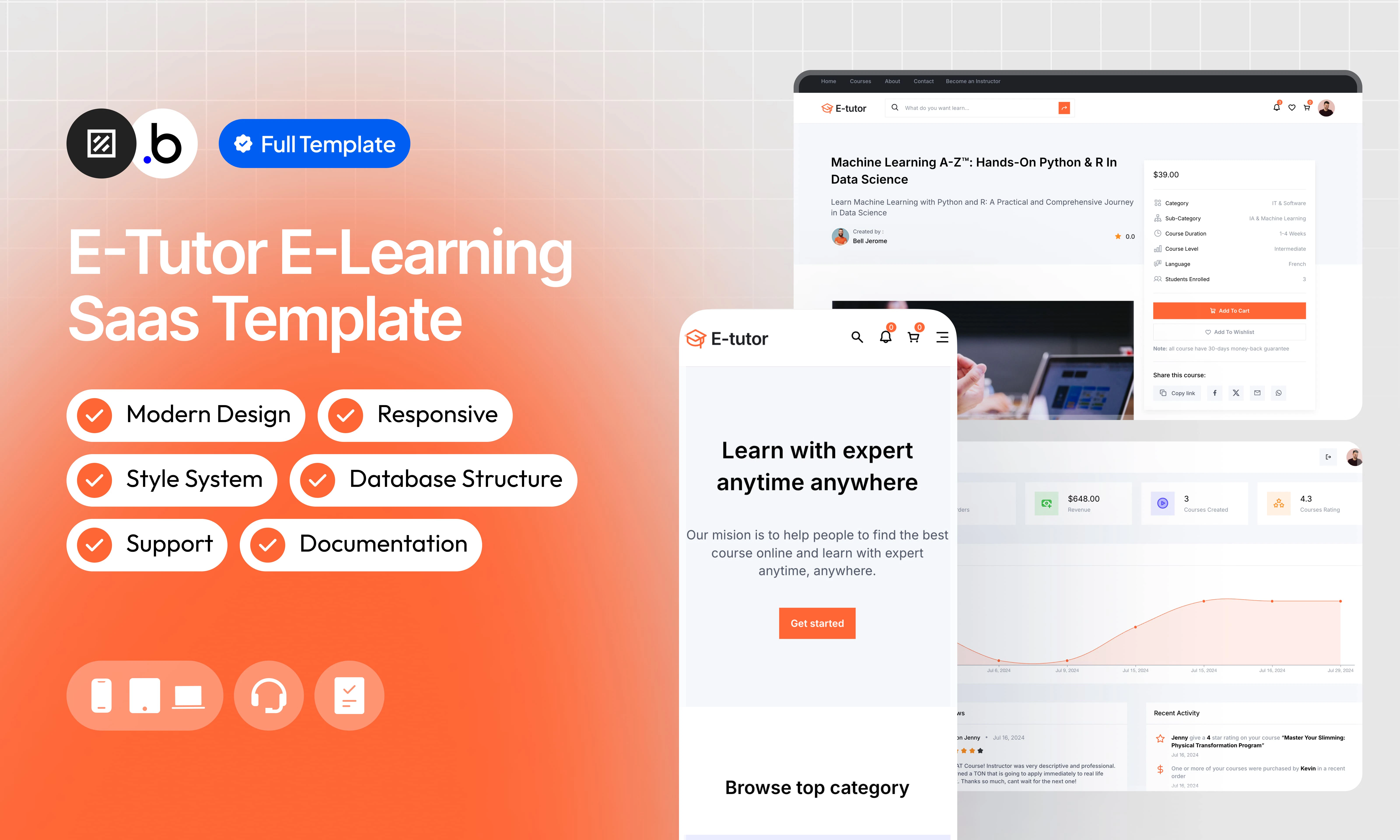
This template provides a complete, ready-to-use foundation for building an online course platform. It covers the entire user journey, from sign-up and login through course purchase, progress tracking, and platform administration, so you can focus on your content rather than building infrastructure from scratch. The template includes dedicated dashboards for students, instructors, and administrators, a built-in pricing system that handles taxes and coupons, and a fully responsive design that works seamlessly across all devices. It also comes with a quick style system to accelerate customization, full documentation, and reactive support to help you get up and running fast.Functionalities
Easy Sign-Up and Login
Easy Sign-Up and Login
Simplify access to the platform with an intuitive sign-in and login page for all users.
User Dashboard
User Dashboard
Easily manage your purchased courses, track your progress and access your favorite content via a user-friendly dashboard.
Instructor Dashboard
Instructor Dashboard
Publish and manage your courses, track sales and interact with students through a comprehensive and intuitive dashboard.
Administrator Dashboard
Administrator Dashboard
Monitor the entire platform, manage users and courses, and access detailed statistics for effective administration.
Clean and Totally Responsive Design
Clean and Totally Responsive Design
Enjoy a modern and clean design that fits perfectly on all devices, providing an optimal user experience.
Quick Style System
Quick Style System
Get more done with an integrated style system that speeds up the creation and management of your content.
Calculation of the final price with taxes and coupons
Calculation of the final price with taxes and coupons
Offer transparent and competitive prices with an automatic system of integrating taxes and coupons in the calculation of the final price.
Full Documentation
Full Documentation
Access detailed documentation that covers all the platform’s features, making it easy to get started and use.
Reactive Support
Reactive Support
Get responsive and professional technical support to quickly resolve all your questions and concerns.
Pages
index
index
E-Tutor platform homepage offers an overview of popular courses, featured instructors, and new updates. This is the starting point to explore the offers and discover the platform’s features.
shopping_cart
shopping_cart
This page displays all the courses added by the user to his cart. It allows you to apply discount coupons and see the total to pay before proceeding with the payment.
checkout
checkout
The checkout page allows users to complete their purchase.
instructor_dashboard
instructor_dashboard
The instructor dashboard allows them to manage their courses, track sales, interact with students, and access performance statistics.
student_dashboard
student_dashboard
The users dashboard displays purchased courses, progress of current courses and allows you to manage account settings.
admin_dashboard
admin_dashboard
The administrator dashboard allows you to supervise the entire platform. They can manage users, prices, transactions and access detailed analyses.
single_course
single_course
This page details a specific course, including the syllabus, learning objectives, student feedback and instructor information.
watch_course
watch_course
The viewing page allows users to access the content of courses they have purchased. They can watch the videos, download resources and track their progress.
sign_up
sign_up
The registration page allows new users to create an account on the platform by entering their personal information and preferences.
sign_in
sign_in
The login page allows existing users to log in to their account using their email address and password.
course_list
course_list
This page displays a complete list of all courses available on the platform. Users can filter courses by category, level, price and title.
instructor_list
instructor_list
This page presents all the instructors registered on the platform, with a search feature to find an instructor by name
career
career
The job opportunities page details available positions at E-Tutor, required qualifications and benefits offered.
contact
contact
The contact page allows users to ask questions, request help or provide feedback via a contact form.
faq
faq
The FAQ page provides answers to frequently asked questions from users, covering various aspects of using the platform.
instructor_profile
instructor_profile
This page details the profile of a specific instructor, including his or her biography, the courses he offers and student reviews.
about
about
The “About Us” page presents the history, mission, values and team behind E-Tutor, giving an insight into the company.
job_details
job_details
This page provides specific details about a particular job offer at E-Tutor, including responsibilities, qualifications required and an application form.
reset_pw
reset_pw
This page allows users to reset their password.
404
404
The 404 page is displayed when the user tries to access a non-existing page. It offers links to the main sections of the site to help you find your way back.
Reusable Elements
A collection of shared components built to be used across multiple pages, helping maintain design consistency while making updates and scaling more efficient.A reusable element creates an element that contains other elements, like a group, that can be used in more than one place. This is useful when reusing the same elements often. Using reusable elements keeps the app smaller and makes it easier to edit.
Header
Header
The header is a reusable element present on all pages of the platform. It includes a search box that allows users to quickly find courses, as well as navigation buttons for easy access to main pages such as the home, Courses, instructors, dashboard and login/sign-in pages.
Workflows
This structure uses folders and colors to organize workflows clearly, improve readability, and ensure consistent logic management across the application.In Bubble, workflows define how an application behaves. They are triggered by events and run actions that manage data, navigation, and user interactions.
Folders
Folders are structured by functional category, with each folder grouping workflows related to a specific domain of the application. This approach ensures that every type of logic has its dedicated space, making the overall workflow architecture clearer, more organized, and easier to maintain.Database
Database
This folder contains workflows responsible for creating, updating, deleting, and managing data within the application. It centralizes all logic that interacts directly with the database to ensure structured and consistent data handling.
Plugins
Plugins
This folder includes workflows that depend on external plugins or third party integrations. It isolates plugin related logic to keep the core application structure clean and organized.
Visuals
Visuals
This folder contains workflows that affect the user interface, such as showing or hiding elements, triggering animations, or dynamically updating what the user sees. It manages front end behavior without altering stored data.
Custom States
Custom States
This folder groups workflows that manage temporary front end data stored in custom states. It is used to control dynamic interactions and interface logic without impacting the database.
Custom states are variables that you can save on any element on the page, including the page itself. They let you store data temporarily that is reset when the page is reloaded. This is useful when you need your app to remember some information that you don’t need to store permanently in the database.
Emails
Emails
This folder includes workflows dedicated to sending automated or transactional emails. It centralizes communication logic to ensure consistency and easier maintenance.
APIs
APIs
This folder contains workflows that handle external API calls and data exchanges with outside services. It organizes integration logic and keeps external communication clearly separated from internal processes.
Colors
Colors are used as visual indicators to distinguish workflow types and intentions. Each color corresponds to a specific category of action, allowing quick recognition of the workflow’s purpose and improving readability across the entire logic structure.Blue
Blue
Blue is used for workflows involving navigation, such as redirects to other pages or links.
Green
Green
Green indicates workflows involving the database, such as creating or updating data in the database or the registration/connection system.
Red
Red
Red indicates workflows that have an impact on deleting data or resetting values.
Orange
Orange
Orange is reserved for visual elements, such as showing or disappearing pop-ups, floating groups, and other such interactive elements.
Purple
Purple
This color is reserved for elements related to APIs and Plugins.
Cyan
Cyan
The Cyan color indicates specific interactions triggered by custom events or custom states.
Brown
Brown
Brown is use for email send
Datatypes
The database consists of different data types that you as the developer plan and set up. Data types are like containers that hold specific types of information and each data type is made up of fields where that information is stored.User
Instructor
Courses
Section
Lecture
Coupon
Cart
Order
Course Reviews
Instructor Review
Job
Lecture Comments
Lecture Reply
Notifications
Option Sets
This section covers option sets, used to store a static list of options in a database-like structureOption sets let you set up different types of static options in a database-like structure, but without using the database. This is useful to store information like days of the week, marital status, colors, states, countries and other data that you want to load quickly and that’s rarely updated.
Admin Dashboard
This option set defines the different navigation tabs within the admin dashboard. It is used to control internal navigation and manage which section.- Home
- Courses
- Instructors
- Users
- Orders
- Reviews
- Jobs
- Settings
Course Category
Lists the main categories used to classify courses on the platform.- IT & Software
- Finance & Accounting
- Music
- Marketing
- Design
- Photography & Video
- Health & Fitness
- Business
Course Duration
Defines the available duration ranges used to filter or describe course length.- 6-12 Months
- 3-6 Months
- 1-3 Months
- 1-4 Weeks
- 1-7 Days
Course Language
Lists the languages in which courses can be offered.- French
- English
- Spanish
- German
- Portuguese
Course Level
Indicates the difficulty level of a course.- Beginner
- Intermediate
- Expert
Course Status
Tracks the current publication state of a course throughout its lifecycle.- Draft
- Verification
- Published
- Rejected
Course Sub-Category
Lists the sub-categories used to further refine course classification within a main category.- Web Development
- Cybersecurity
- IA & Machine Learning
- Big Data
- Project Management
- Entrepreneurship
- Human Resource
- Business Strategy
- Composition and Theory
- Music Production
- Instruments
- Song and Voice
- General Accounting
- Investment
- Financial Management
- Fiscality
- Digital Marketing
- Marketing Strategy
- Network Marketing
- Publicity
- Graphic Design
- UX/UI Design
- Interior Design
- Products Design
- Photography
- Video
- Equipment
- Advanced Techniques
- Fitness Training
- Nutrition & Dietetics
- Mental Health
- Well-being & Life Style
Create/Edit Course Tab
Defines the step-by-step tabs displayed when creating or editing a course.- Basic Information
- Advance Information
- Curriculum
Instructor Dashboard
Defines the tabs displayed in the instructor dashboard navigation.- Dashboard
- Create New Course
- My Courses
- Earning
- Settings
Job Type
Lists the employment types available for instructor or team profiles.- Full Time
- Part Time
- Flex Time
My Course Tab
Defines the view options available in the instructor’s course management section.- Search
- Edit Course
- View Details
Notifications Settings
Lists the individual notification preferences a user can enable or disable.- I want to know who buy my course.
- I want to know who write a review on my course.
- I want to know who commented on my lecture.
- I want to know who download my lecture notes.
- I want to know who replied on my comment.
- I want to know daily how many people visited my profile.
- I want to know who download my lecture attach file.
Notifications Category
Groups notifications into high-level categories for easier management.- Purchase
- Reviews
- Comments
Student Dashboard
Defines the tabs displayed in the student dashboard navigation.- Dashboard
- Courses
- Wishlist
- Purchase History
- Settings
Users Status
Identifies the role assigned to users within the template demo environment.- Demo
- Admin
Plugins
An overview of the external plugins integrated into the application to extend its native capabilities and enhance specific features or functionalities.Feather Icons
FreeFeather Icons
Visual icon elements from the Feather Icons suite (https://feathericons.com/). Customize the color, fill color, and stroke width. Elements should maintain the standard Bubble element properties.
Animated Rating Stars
FreeAnimated Rating Stars
Add animated star rating input with configurable size, colors, and default value. Supports static and interactive modes, user interaction events, responsive layout, and rating reset actions.
Chart Element
FreeChart Element
Add a chart element to your application. You can display line, bar charts or polar charts.
Air Copy To Clipboard
FreeAir Copy To Cilpboard
The Air Copy to Clipboard plugin for the Bubble application allows users to copy text to the clipboard with a single action.
Reveal & Hide Password
FreeReveal & Hide Password
Toggle password visibility in Bubble input fields using a reveal/hide icon. Supports icon size, color, position, default visibility state, multiple inputs, and dynamic control with minimal setup.
Rich Text Editor
FreeRich Text Editor
Enable your users to write rich, formatted text in an input. Compatible with text elements and email.
Toolbox
FreeToolbox
Javascript and utility elements: List of Numbers, Expression, Javascript to Bubble, List Item Expression, Run javascript (workflow action), Server script (server workflow action).
Iconify
FreeIconify
Unofficial Iconify plugin. Add any Icon from http://iconify.design to you application, change it’s color*, flip it, rotate it*, resize it, just do what you want.
Progress Bar
FreeProgress Bar
The Progress Bar Plugin creates an element that displays a progress bar that shows the user what percentage of a task is completed.
Refund Policy
Refund Policy
This policy defines the conditions under which refunds may be requested for our products. It distinguishes between templates distributed through the Bubble Marketplace and the Brikl Chrome Extension, specifying the applicable deadlines, eligibility requirements, and usage-related limitations for each.