
Beginner Level : Simple templates for new users with little to no Bubble experience.
Overview
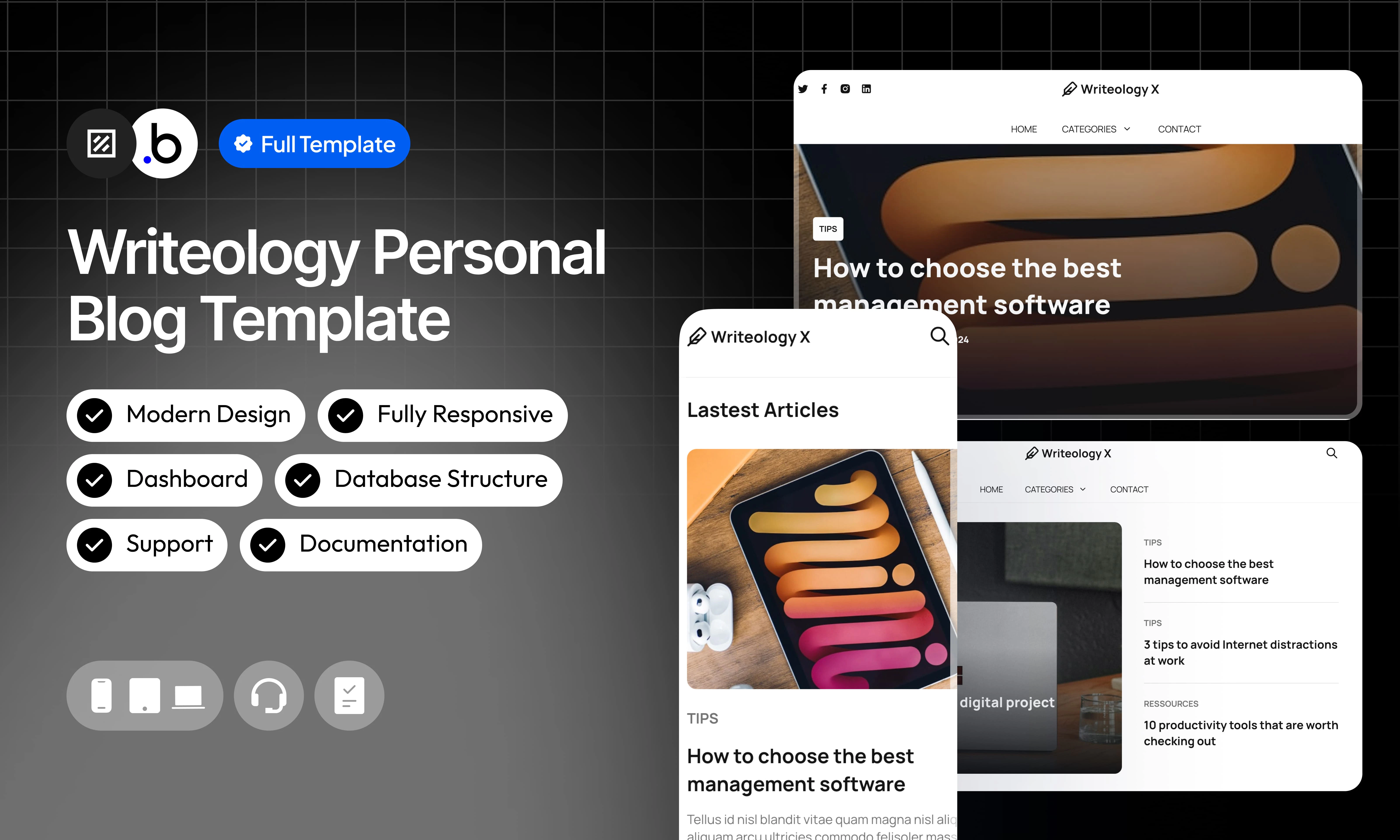
Our personal blog template is the perfect solution for those who want to share their passion, thoughts or expertise with the world. Carefully designed, it incorporates essential features for easy management and an excellent user experience : Admin Dashboard : An intuitive dashboard lets you easily manage your content, settings, and user interactions. Everything is at hand for a smooth management of your blog. Responsive Design : This template adapts perfectly to all devices, ensuring an optimal user experience for your visitors to use a desktop, tablet or smartphone. Support & Documentation : Access responsive support and comprehensive documentation that will guide you through all the features of the template, helping you troubleshoot and optimize your blog usage. This personal blog template is more than just a blogging platform; it’s a powerful tool to connect with your audience and share your vision effectively.Functionalties
Fully responsive
Fully responsive
The application is designed to adapt seamlessly to all screen sizes and devices, ensuring a consistent and optimized user experience on desktop, tablet, and mobile.
Dashboard Admin
Dashboard Admin
A dedicated administrative interface that allows full control over data, users, and key application settings through a centralized management panel.
CRUD Workflows
CRUD Workflows
Structured workflows that handle creating, reading, updating, and deleting data efficiently, ensuring reliable and scalable data management.
Modern Design
Modern Design
A clean and contemporary interface built with intuitive layouts, balanced spacing, and a strong visual hierarchy to enhance usability and user engagement.
Dynamic Contents
Dynamic Contents
Content that updates automatically based on user interactions or database changes, providing a personalized and interactive experience.
Reactive Support
Reactive Support
A responsive support system that ensures quick issue resolution and continuous assistance to maintain smooth application performance.
Workflow Structure
Workflow Structure
A clearly organized workflow architecture using logical grouping and visual categorization to improve readability, scalability, and long term maintainability.
Pages
index
index
article
article
The page that details each article with elements from the Article Data Types
blog_categories
blog_categories
The page that presents the articles by the category that was selected
search_page
search_page
The page that presents the articles by the key word that was selected
contact
contact
The page that allow the users to contact you
admin
admin
The page that will allow you to create and modify articles
404
404
Totally personalized error page
Reusable Elements
A collection of shared components built to be used across multiple pages, helping maintain design consistency while making updates and scaling more efficient.A reusable element creates an element that contains other elements, like a group, that can be used in more than one place. This is useful when reusing the same elements often. Using reusable elements keeps the app smaller and makes it easier to edit.
Header
Header
This reusable element is located at the top of each page and contains the template logo, the different article categories, a contact button to redirect the users on the contact page, a home button to allow the users to go back to the the home page and a hidden Menu icon which appears depending on the size of the page.
Workflows
This structure uses folders and colors to organize workflows clearly, improve readability, and ensure consistent logic management across the application.In Bubble, workflows define how an application behaves. They are triggered by events and run actions that manage data, navigation, and user interactions.
Folders
Folders are structured by functional category, with each folder grouping workflows related to a specific domain of the application. This approach ensures that every type of logic has its dedicated space, making the overall workflow architecture clearer, more organized, and easier to maintain.Database
Database
This folder contains workflows responsible for creating, updating, deleting, and managing data within the application. It centralizes all logic that interacts directly with the database to ensure structured and consistent data handling.
Plugins
Plugins
This folder includes workflows that depend on external plugins or third party integrations. It isolates plugin related logic to keep the core application structure clean and organized.
Visuals
Visuals
This folder contains workflows that affect the user interface, such as showing or hiding elements, triggering animations, or dynamically updating what the user sees. It manages front end behavior without altering stored data.
Custom States
Custom States
This folder groups workflows that manage temporary front end data stored in custom states. It is used to control dynamic interactions and interface logic without impacting the database.
Custom states are variables that you can save on any element on the page, including the page itself. They let you store data temporarily that is reset when the page is reloaded. This is useful when you need your app to remember some information that you don’t need to store permanently in the database.
Emails
Emails
This folder includes workflows dedicated to sending automated or transactional emails. It centralizes communication logic to ensure consistency and easier maintenance.
APIs
APIs
This folder contains workflows that handle external API calls and data exchanges with outside services. It organizes integration logic and keeps external communication clearly separated from internal processes.
Colors
Colors are used as visual indicators to distinguish workflow types and intentions. Each color corresponds to a specific category of action, allowing quick recognition of the workflow’s purpose and improving readability across the entire logic structure.Blue
Blue
Blue is used for workflows involving navigation, such as redirects to other pages or links.
Green
Green
Green indicates workflows involving the database, such as creating or updating data in the database or the registration/connection system.
Red
Red
Red indicates workflows that have an impact on deleting data or resetting values.
Orange
Orange
Orange is reserved for visual elements, such as showing or disappearing pop-ups, floating groups, and other such interactive elements.
Purple
Purple
This color is reserved for elements related to APIs and Plugins.
Cyan
Cyan
The Cyan color indicates specific interactions triggered by custom events or custom states.
Brown
Brown
Brown is use for email send
Datatypes
The database consists of different data types that you as the developer plan and set up. Data types are like containers that hold specific types of information and each data type is made up of fields where that information is stored.User
Article
Newsletter Subscription
Option Sets
This section covers option sets, used to store a static list of options in a database-like structureOption sets let you set up different types of static options in a database-like structure, but without using the database. This is useful to store information like days of the week, marital status, colors, states, countries and other data that you want to load quickly and that’s rarely updated.
Category
This option set defines the different blog article categories available in the application. It ensures consistent classification of content and makes it easier to filter, organize, and display posts dynamically.- Tips
- Resources
- Guides
Dashboard Admin
This option set defines the different navigation tabs within the admin dashboard. It is used to control internal navigation and manage which section, such as editing or newsletter management, is displayed to the user.- Account
- Create Article
- Articles
- Newsletter
Plugins
An overview of the external plugins integrated into the application to extend its native capabilities and enhance specific features or functionalities.Iconify
FreeIconify
Unofficial Iconify plugin. Add any Icon from http://iconify.design to you application, change it’s color*, flip it, rotate it*, resize it, just do what you want.
Reveal & Hide Password
FreeReveal & Hide Password
Toggle password visibility in Bubble input fields using a reveal/hide icon. Supports icon size, color, position, default visibility state, multiple inputs, and dynamic control with minimal setup.
Rich Text Editor
FreeRich Text Editor
Enable your users to write rich, formatted text in an input. Compatible with text elements and email.
Refund Policy
Refund Policy
This policy defines the conditions under which refunds may be requested for our products. It distinguishes between templates distributed through the Bubble Marketplace and the Brikl Chrome Extension, specifying the applicable deadlines, eligibility requirements, and usage-related limitations for each.