
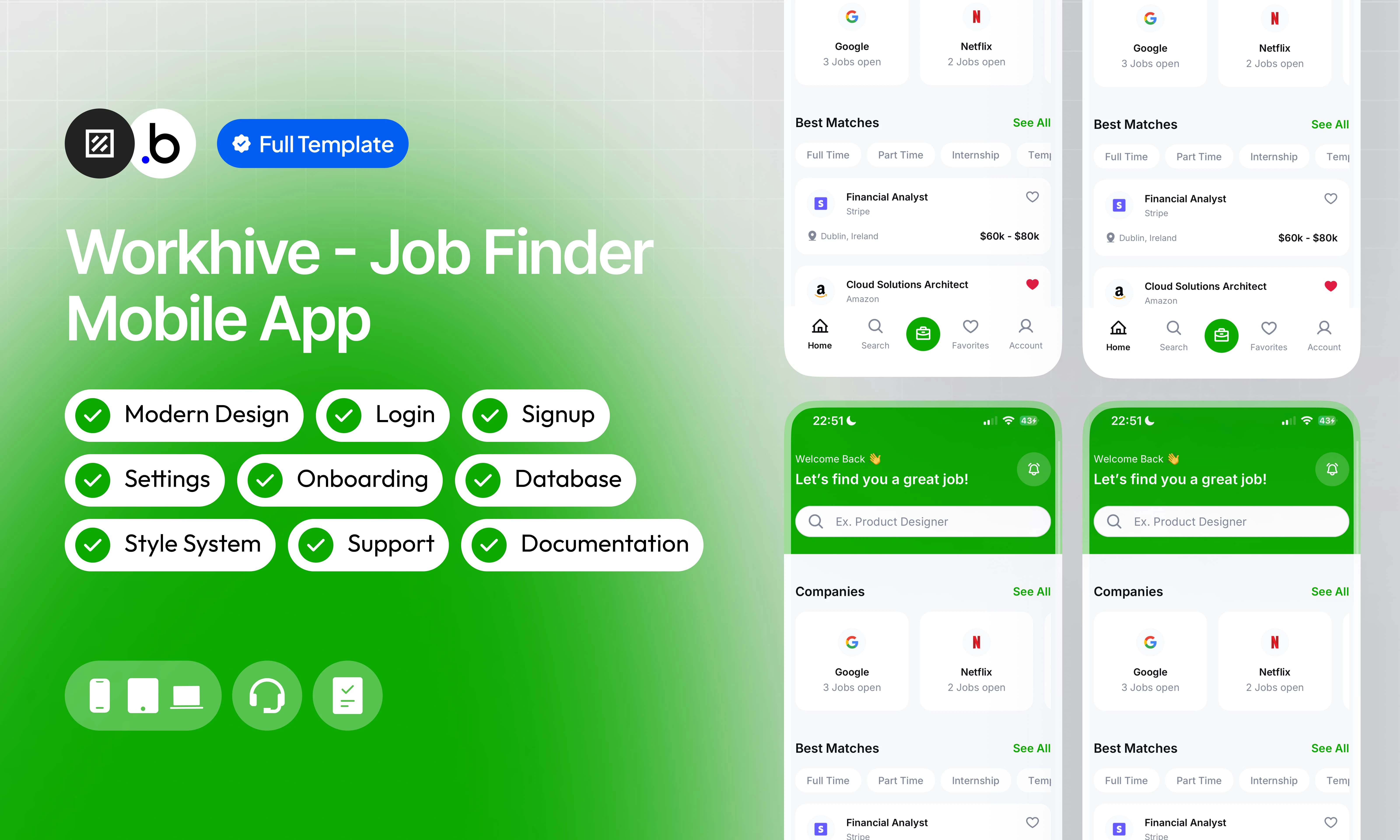
Overview
Built for developers and teams who want to skip the boilerplate and focus on what makes their app unique. This template delivers a complete mobile app foundation: a sleek, modern UI that feels native and professional, a well-organized database structure ready to grow with you, and a fully functional app, not just static screens. It also includes a smooth onboarding process that guides your users from first open to their first key action, thorough documentation so you can customize everything with confidence, and reactive support whenever you need a hand. Whether you’re shipping an MVP or building the foundation for something bigger, this template gives you a serious head start.Functionalities
Signup & Login Workflows
Signup & Login Workflows
Complete authentication system with email and social login, password recovery, and session management built right in.
Structured Database
Structured Database
A well-thought-out database schema that keeps your data clean, consistent, and ready to scale as your user base grows.
Modern Design
Modern Design
A sleek, intuitive interface designed with attention to detail, delivering a smooth and professional native experience on every screen.
Search & Filter
Search & Filter
Powerful search and filtering tools that let users quickly find exactly what they’re looking for, no matter how much content you have.
Account Settings
Account Settings
A fully built settings screen where users can manage their profile, update preferences, and control notifications with ease.
Reactive Support
Reactive Support
A dedicated support team that responds quickly and helps you solve issues so you can keep building without losing momentum.
Views
splash_screen
splash_screen
The first screen users see when opening the app. Displays the logo on a vibrant green background with a smooth loading animation lasting three seconds before transitioning to the next screen.
about_me
about_me
A simple input screen where users can write a short bio or description about themselves, helping build a more complete and personalized profile.
about_us
about_us
An informational screen that gathers all important links in one place, including terms of use, the official website, social media accounts, and other relevant resources.
account
account
The main settings hub where users can navigate to key sections like their profile, payment account, support center, and other account-related options.
account_security
account_security
A dedicated security screen where users can update their password, enable or disable Face ID, and manage other authentication preferences to keep their account safe.
apply_job
apply_job
A structured application form that lets users submit their candidacy for a job offer, with all the required fields to complete the process smoothly.
apply_submitted
apply_submitted
A confirmation screen displayed after a job application has been successfully submitted, reassuring the user that everything went through.
company
company
A detailed company view showing all relevant information about a business, including its description, industry, location, and any other available details.
education
education
A form screen where users can add their educational background, including degrees, institutions, and graduation dates, to strengthen their profile.
favorites
favorites
A dedicated list of all job offers the user has saved as favorites, making it easy to revisit and compare opportunities at any time.
forgot_password
forgot_password
A recovery screen where users can enter the email associated with their account to receive a password reset link and regain access.
get_started
get_started
The welcome screen presented to new users, featuring clear action buttons to sign up, log in, or explore other entry points into the app.
home
home
The main screen of the app, serving as the central hub where users can browse featured job offers, explore categories, and access key features at a glance.
job_applications
job_applications
A complete overview of all the user’s submitted applications, organized by status such as pending, under verification, accepted, and more for easy tracking.
job_details
job_details
A full detail view of a specific job offer, displaying all relevant information including role description, requirements, salary, location, and company details.
languages
languages
A settings screen where users can choose their preferred language for the entire app, with a clear list of all available options.
login
login
The sign-in screen where returning users can enter their credentials to securely access their account and pick up where they left off.
onboarding_1
onboarding_1
The first step of the onboarding experience, introducing users to a key feature or concept of the app through a clear and engaging visual explanation.
onboarding_2
onboarding_2
The second onboarding step, continuing to walk users through the app’s core value and how it can help them in their job search journey.
onboarding_3
onboarding_3
The final onboarding step, wrapping up the introduction and encouraging users to get started with the app right away.
payment_account
payment_account
A screen where users can connect and manage their preferred payment providers such as PayPal, Apple Pay, and Google Pay for a seamless payment experience.
personal_data
personal_data
A form that allows users to update their personal information including name, phone number, address, and other key details tied to their profile.
privacy_policy
privacy_policy
A dedicated screen displaying the full privacy policy of the app, ensuring transparency about how user data is collected, used, and protected.
profile
profile
The user’s complete profile page, showcasing their photo, personal data, education, bio, and all other information they’ve added throughout the app.
push_notifications
push_notifications
A settings screen where users can customize their notification preferences, choosing which alerts they want to receive and which ones to mute.
register
register
The account creation screen where new users can sign up by entering their details and setting up their credentials to start using the app.
reset_password
reset_password
A secure form where users can set a new password after requesting a reset, helping them regain full access to their account.
search_company
search_company
A search screen that lets users look up companies by name, making it easy to find and explore specific businesses and their available job offers.
search_job
search_job
A powerful search screen where users can find job offers by name and refine results using multiple filters like location, category, salary range, and more.
setup_account_01
setup_account_01
The first step of the account setup process after registration, asking users to select their country from a comprehensive list to personalize their experience.
setup_account_02
setup_account_02
The second setup step, where users choose their professional field from a wide range of options such as IT, Sales, Marketing, Design, and many more.
setup_account_03
setup_account_03
The final setup step, presenting a form where users fill in their personal data to complete their profile and get the most relevant job recommendations.
support_center
support_center
A help section featuring a list of frequently asked questions, giving users quick answers to common issues without needing to contact support directly.
Workflows
This structure uses folders and colors to organize workflows clearly, improve readability, and ensure consistent logic management across the application.In Bubble, workflows define how an application behaves. They are triggered by events and run actions that manage data, navigation, and user interactions.
Folders
Folders are structured by functional category, with each folder grouping workflows related to a specific domain of the application. This approach ensures that every type of logic has its dedicated space, making the overall workflow architecture clearer, more organized, and easier to maintain.Database
Database
This folder contains workflows responsible for creating, updating, deleting, and managing data within the application. It centralizes all logic that interacts directly with the database to ensure structured and consistent data handling.
Plugins
Plugins
This folder includes workflows that depend on external plugins or third party integrations. It isolates plugin related logic to keep the core application structure clean and organized.
Visuals
Visuals
This folder contains workflows that affect the user interface, such as showing or hiding elements, triggering animations, or dynamically updating what the user sees. It manages front end behavior without altering stored data.
Custom States
Custom States
This folder groups workflows that manage temporary front end data stored in custom states. It is used to control dynamic interactions and interface logic without impacting the database.
Custom states are variables that you can save on any element on the page, including the page itself. They let you store data temporarily that is reset when the page is reloaded. This is useful when you need your app to remember some information that you don’t need to store permanently in the database.
Emails
Emails
This folder includes workflows dedicated to sending automated or transactional emails. It centralizes communication logic to ensure consistency and easier maintenance.
APIs
APIs
This folder contains workflows that handle external API calls and data exchanges with outside services. It organizes integration logic and keeps external communication clearly separated from internal processes.
Colors
Colors are used as visual indicators to distinguish workflow types and intentions. Each color corresponds to a specific category of action, allowing quick recognition of the workflow’s purpose and improving readability across the entire logic structure.Blue
Blue
Blue is used for workflows involving navigation, such as redirects to other pages or links.
Green
Green
Green indicates workflows involving the database, such as creating or updating data in the database or the registration/connection system.
Red
Red
Red indicates workflows that have an impact on deleting data or resetting values.
Orange
Orange
Orange is reserved for visual elements, such as showing or disappearing pop-ups, floating groups, and other such interactive elements.
Purple
Purple
This color is reserved for elements related to APIs and Plugins.
Cyan
Cyan
The Cyan color indicates specific interactions triggered by custom events or custom states.
Brown
Brown
Brown is use for email send
Datatypes
The database consists of different data types that you as the developer plan and set up. Data types are like containers that hold specific types of information and each data type is made up of fields where that information is stored.Application
Company
Company Benefits
Job
User
User Education
User Work Experience
Option Sets
This section covers option sets, used to store a static list of options in a database-like structureOption sets let you set up different types of static options in a database-like structure, but without using the database. This is useful to store information like days of the week, marital status, colors, states, countries and other data that you want to load quickly and that’s rarely updated.
Applications Status
A predefined set of statuses used to track the progress of a job application throughout the hiring process, from submission to final decision.- Pending
- Review
- Interview
- Accepted
- Rejected
Contract Type
A list of employment contract formats used to classify job offers by their working arrangement and duration.- Full Time
- Part Time
- Internship
- Temporary
- Seasonal
- Freelance
Education Level
A set of academic degree levels used to classify the user’s educational background on their profile.- High School
- Associate
- Bachelor
- Master
- Doctorate
Education Status
A set of statuses indicating the current state of a user’s education entry, whether completed, ongoing, or stopped.- Pending
- Finished
- Discontinued
Experience Level
A set of seniority levels used to define the professional experience required for a job offer.- Junior
- Senior
- Lead
- Manager
Gender
A set of gender options available for the user to select when completing their personal profile.- Male
- Female
Job Category
A comprehensive list of professional fields used to classify job offers and define user expertise areas throughout the app.- Accounting
- Designer
- Legal
- Finance
- Sales
- Engineering
- Architecture
- Consultancy
- Management
- Customer Service
- Public Service
- IT
- Writing
- Security
- Marketing
- Programmer
Languages
A list of supported languages the user can choose from to set their preferred language for the entire app interface.- English
- Spanish
- French
- Portuguese
- Arabic
- German
- Chinese
- Japanese
- Italian
- Russian
- Turkish
Location
A list of countries used during the account setup process, allowing users to select their country of origin or residence.- Spain
- France
- United States
- United Kingdom
- Japan
- Brazil
- China
- Germany
- Italy
- Canada
- South Africa
- India
- Denmark
- Portugal
Push Notifications
A set of notification categories that users can individually enable or disable to control what alerts they receive from the app.- Notifications
- Payments
- Sound
- Vibrate
- Special Offers
- Cashback
- App Updates
Role
A set of user roles used to define access levels and permissions within the app, determining what each user can see and do.- Applicant
- Company
- Admin
Support Center
A predefined list of frequently asked questions and their answers, displayed in the support section to help users find quick solutions.- What is this application?
- Is the application free?
- Are my personal data protected?
- How can I change my personal information?
- I encounter a bug, what to do?
Refund Policy
Refund Policy
This policy defines the conditions under which refunds may be requested for our products. It distinguishes between templates distributed through the Bubble Marketplace and the Brikl Chrome Extension, specifying the applicable deadlines, eligibility requirements, and usage-related limitations for each.