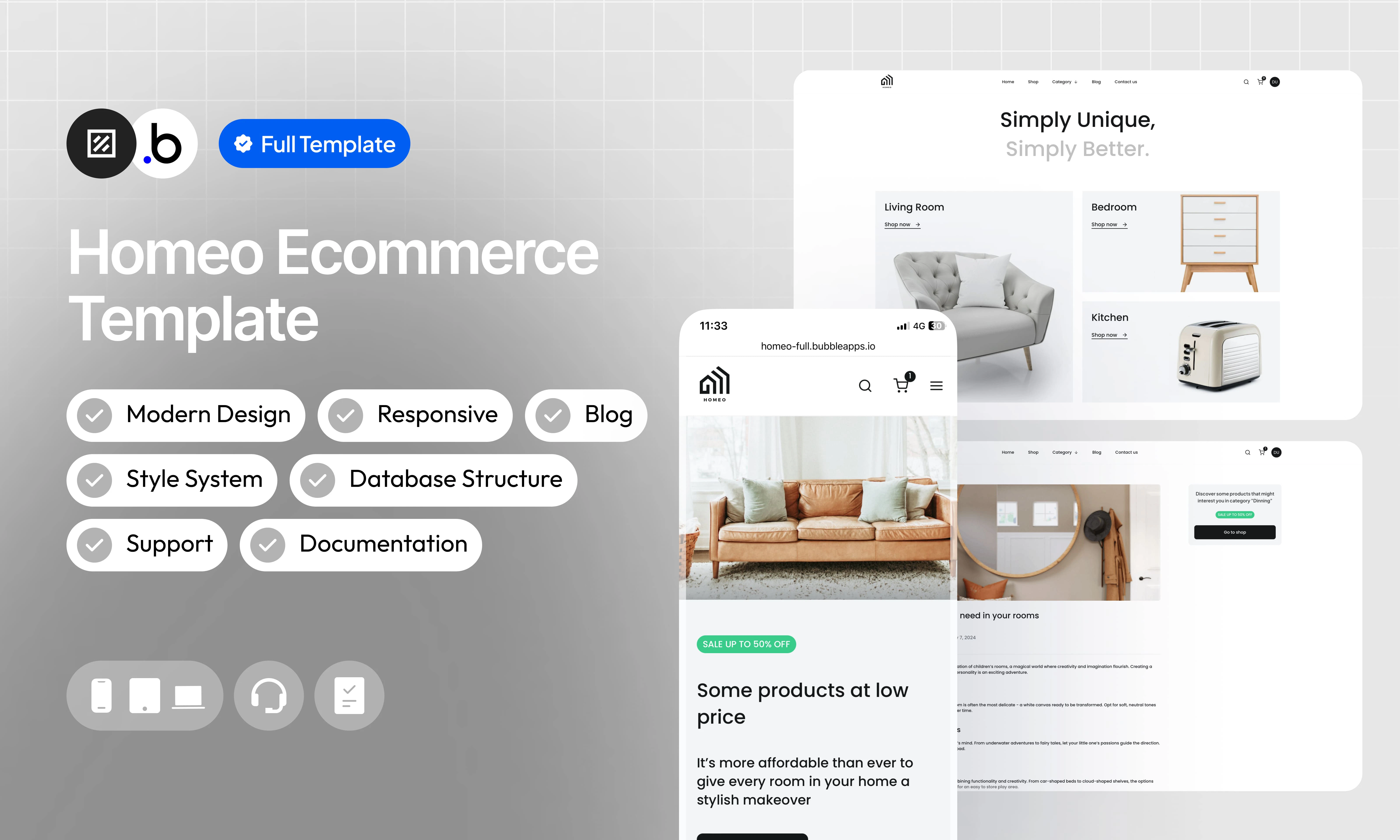
Check out our e-commerce template for home furniture – a modern solution to launch your own online store. Fully responsive, this template offers dynamic content and a style system to simplify customization. With blog integration, customer account verification and dedicated support, it’s the perfect tool to create an exceptional shopping experience.
Showcase your products in an attractive way and easily change information with simple content management.
Intuitive Admin Dashboard
Manage your store with ease with an intuitive admin dashboard. Control products, orders, and track performance at a glance.
Predefined Style System
Save time in design with a predefined style system. Harmonize the look of your shop effortlessly.
Automatic Inventory Update
Simplify inventory management with an automatic update with each purchase. Avoid out of stock and ensure a smooth shopping experience.
Blog Integration
Enrich your online store with an integrated blog. Share tips, trends and engage your audience to create a community around your brand.
Documentation
We provide comprehensive documentation to guide you through every aspect of your template. Whether you are a novice or an expert, you will find detailed instructions to make the most of your online store.
Fully Responsive
Enjoy an exceptional user experience, whether for customers browsing your store or for administrators managing the backend. Homeo adapts to all screens, ensuring smooth operation on all devices.
Dedicated Support
I’m here to help. Whether you need to add additional features or are experiencing technical issues, I’m available to support you every step of the way.
Verification Customer Account
Ensure security and trust by integrating a customer account verification system. Offer your customers a secure and personalized shopping experience.
This section explains how to unlock the template’s features. The restriction is intentionally in place to prevent users from adding or modifying data in the preview version. This ensures that no sensitive or inappropriate content can be displayed to other people viewing the template in the Bubble Marketplace.
In order to access all the features of this template, you will need to purchase it and follow the following steps.
1
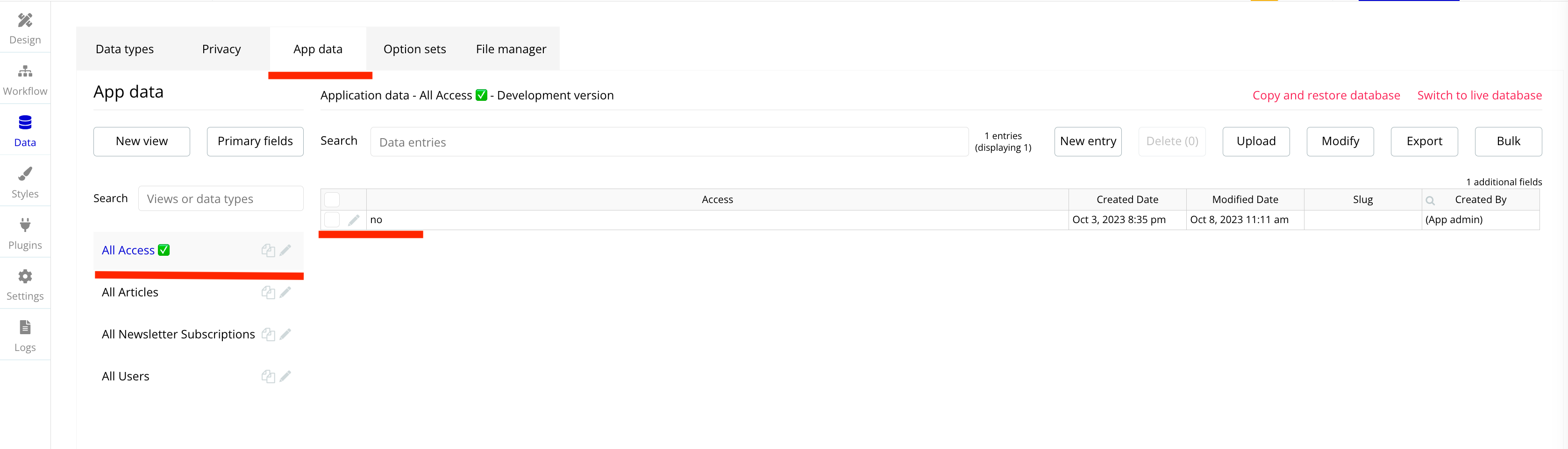
Go to App Data —> Click on the Data Type Access ✅ —> To modify the value of the Access Field you must click on the pencil.
2
Change the value of the Access Field to YES —> Don’t forget to save your change by clicking on the SAVE button.
3
You now have access to all the features of the template. All workflows that were limited are marked with this icon ✅ .
4
You can go to the workflows folders and click on "Access ✅" to see all the workflows who are limited. You can delete them when you purchase your template.
Home page with all products posted, with a newsletter subscription system
cart
The page that groups all the products you add to your shopping cart
checkout
The page that allows you to enter the customer’s information for the validation of his order (Delivery address, billing address and payment)
blog_page
The page that lists all blog posts with a filtering system
article_page
The page details the specific article with a photo, a description and the author of the article
contact_us
The page where customers can contact you and ask specific questions. The platform administrator receives an email when each form is sent.
dashboard_admin
The page dedicated to platform administrators where they can manage the entire platform (product creation, reduction, order management, user management, etc.)
dashboard_client
The page dedicated to customers registered on the platform, where they can manage their information, orders and add products as favorites.
login
The page that allows users to log in (client and administrators)
product_page
The page that details the product with photos, colors and sizes available and a description.
shop_page
The page that allows to find precisely a product thanks to a filtering system.
sign_up
The page that allows users to register for the platform (client and administrators)
verification
The page that allows the verification of the email of the users thanks to a code sent by email.
reset_pw
The page that allows users to reset their password
A collection of shared components built to be used across multiple pages, helping maintain design consistency while making updates and scaling more efficient.
A reusable element creates an element that contains other elements, like a group, that can be used in more than one place. This is useful when reusing the same elements often. Using reusable elements keeps the app smaller and makes it easier to edit.
Header
This reusable element is located at the top of each page and contains the logo of the model, the different types of products, buttons to connect and register, an input to search for products by name. An icon (Menu) is hidden and appears depending on the size of the page, it contains all the elements mentioned above.
Footer
FAQ
The FAQ is positioned on certain pages such as the Cart so that customers find certain answers to their questions.
Popup Access
The Popup Access serves to inform the user who previews the template that some features are limited until the purchase of the template.
Popup Credentials
The Popup Credentials allows the user to change their password and email address.
This structure uses folders and colors to organize workflows clearly, improve readability, and ensure consistent logic management across the application.
In Bubble, workflows define how an application behaves. They are triggered by events and run actions that manage data, navigation, and user interactions.
Folders are structured by functional category, with each folder grouping workflows related to a specific domain of the application. This approach ensures that every type of logic has its dedicated space, making the overall workflow architecture clearer, more organized, and easier to maintain.
Database
This folder contains workflows responsible for creating, updating, deleting, and managing data within the application. It centralizes all logic that interacts directly with the database to ensure structured and consistent data handling.
Navigation
This folder groups workflows that control page transitions, redirects, and user journeys. It defines how users move through the application and ensures a clear and predictable flow.
Plugins
This folder includes workflows that depend on external plugins or third party integrations. It isolates plugin related logic to keep the core application structure clean and organized.
Visuals
This folder contains workflows that affect the user interface, such as showing or hiding elements, triggering animations, or dynamically updating what the user sees. It manages front end behavior without altering stored data.
Custom States
This folder groups workflows that manage temporary front end data stored in custom states. It is used to control dynamic interactions and interface logic without impacting the database.
Custom states are variables that you can save on any element on the page, including the page itself. They let you store data temporarily that is reset when the page is reloaded. This is useful when you need your app to remember some information that you don’t need to store permanently in the database.
Emails
This folder includes workflows dedicated to sending automated or transactional emails. It centralizes communication logic to ensure consistency and easier maintenance.
APIs
This folder contains workflows that handle external API calls and data exchanges with outside services. It organizes integration logic and keeps external communication clearly separated from internal processes.
Colors are used as visual indicators to distinguish workflow types and intentions. Each color corresponds to a specific category of action, allowing quick recognition of the workflow’s purpose and improving readability across the entire logic structure.
Blue
Blue is used for workflows involving navigation, such as redirects to other pages or links.
Green
Green indicates workflows involving the database, such as creating or updating data in the database or the registration/connection system.
Red
Red indicates workflows that have an impact on deleting data or resetting values.
Orange
Orange is reserved for visual elements, such as showing or disappearing pop-ups, floating groups, and other such interactive elements.
Purple
This color is reserved for elements related to APIs and Plugins.
Cyan
The Cyan color indicates specific interactions triggered by custom events or custom states.
The database consists of different data types that you as the developer plan and set up. Data types are like containers that hold specific types of information and each data type is made up of fields where that information is stored.
This section covers option sets, used to store a static list of options in a database-like structure
Option sets let you set up different types of static options in a database-like structure, but without using the database. This is useful to store information like days of the week, marital status, colors, states, countries and other data that you want to load quickly and that’s rarely updated.
Defines the account type of a registered user on the platform. Used to differentiate access levels and permissions between customers and administrators.
Attributes
Type
Note
Display
text
Label displayed to represent the account type (e.g. “Client”, “Admin”)
Lists the navigation sections available in the admin dashboard. Each option corresponds to a menu item allowing the admin to manage a specific part of the platform.
Attributes
Type
Note
Display
text
Label displayed in the admin dashboard navigation menu
Icon
text
Name of the Feather Icons icon associated with the menu section
Lists the navigation sections available in the client dashboard. Each option corresponds to a menu item allowing the customer to manage their personal information and activity on the platform.
Attributes
Type
Note
Display
text
Label displayed in the client dashboard navigation menu
Defines the navigation tabs in the Blog section of the admin dashboard. Allows the admin to switch between the list of existing articles and the creation of a new one.
Attributes
Type
Note
Display
text
Label of the tab displayed in the blog management interface (e.g. “Articles”, “Create”)
Defines the two types of credentials that a user can update from the Credentials Popup in their dashboard. Used to distinguish between updating the email address and updating the password.
Attributes
Type
Note
Display
text
Label of the credential field displayed in the update form (e.g. “Email”, “Password”)
Defines the tabs available on the product page, allowing the user to navigate between the full product description and customer reviews left by other buyers.
Attributes
Type
Note
Display
text
Label of the tab displayed on the product page (e.g. “Description”, “Reviews”)
An overview of the external plugins integrated into the application to extend its native capabilities and enhance specific features or functionalities.
You might need to install these plugins when using the template.
Visual icon elements from the Feather Icons suite (https://feathericons.com/). Customize the color, fill color, and stroke width. Elements should maintain the standard Bubble element properties.
Add animated star rating input with configurable size, colors, and default value. Supports static and interactive modes, user interaction events, responsive layout, and rating reset actions.
Toggle password visibility in Bubble input fields using a reveal/hide icon. Supports icon size, color, position, default visibility state, multiple inputs, and dynamic control with minimal setup.
This policy defines the conditions under which refunds may be requested for our products. It distinguishes between templates distributed through the Bubble Marketplace and the Brikl Chrome Extension, specifying the applicable deadlines, eligibility requirements, and usage-related limitations for each.