
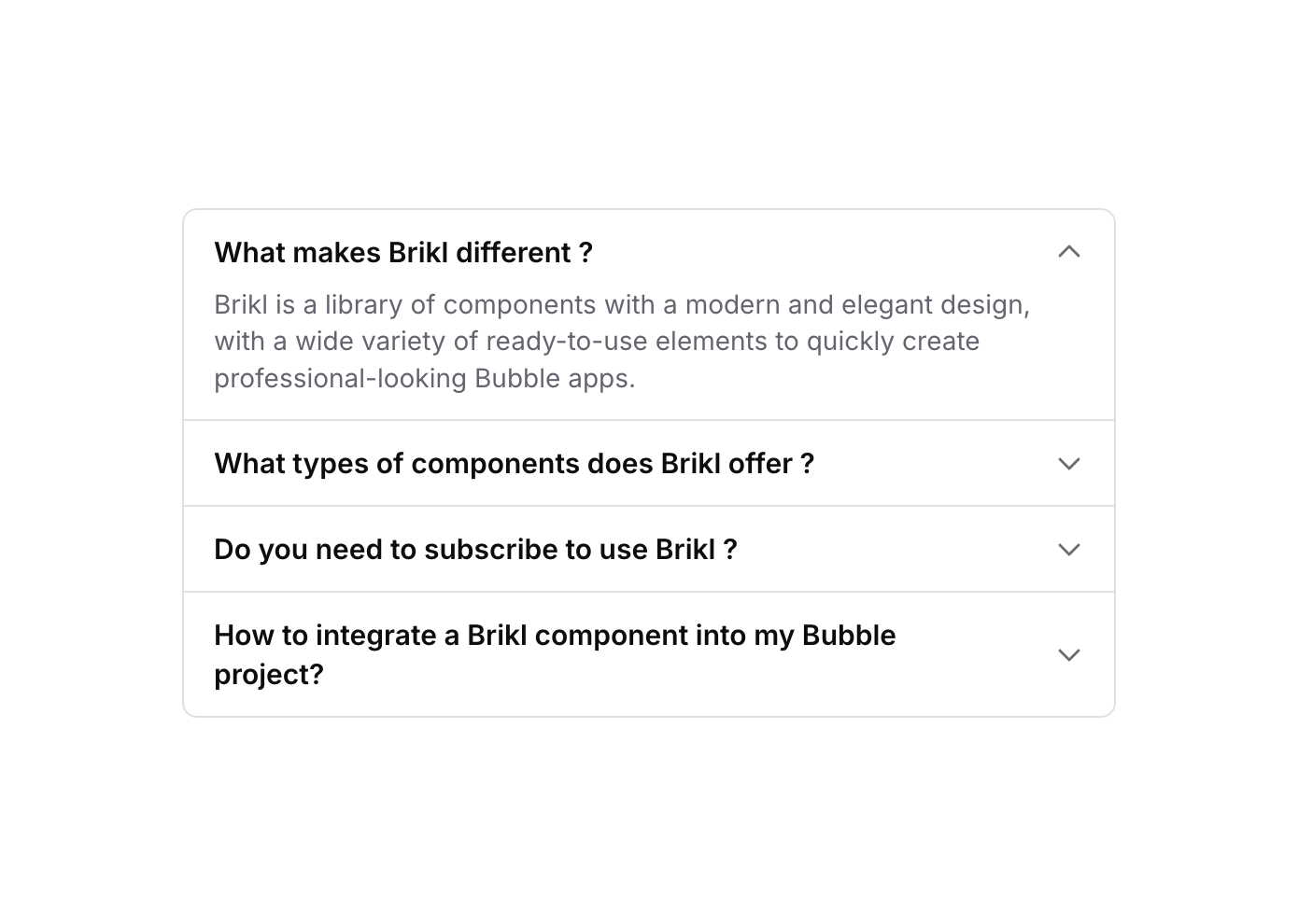
Accordion 11

Overview

Accordion 11 is a vertical FAQ-style accordion component featuring multiple toggle items. Each item displays a question title with a caret-down icon and reveals an answer when clicked. The component uses custom states to track which accordion item is open, toggling visibility of content groups accordingly. It is suited for FAQ sections, help centers, or any collapsible content use case in both web and mobile Bubble apps.

How to use

1

Open the Brikl panel

Navigate to the Elements category in the Brikl panel.
2

Copy the component

Find Accordion 11 and click Copy.
3

Paste into your editor

Paste it into your Bubble canvas with Cmd + V (Mac) or Ctrl + V (Windows), or right-click on the canvas and select Paste.

States

This component includes conditional states that automatically change its appearance.
StateTriggerVisual effect
Item 01 OpenUser clicks the first accordion toggle buttonThe content group for item 01 becomes visible and expands; if already open, it collapses back to hidden
Item 02 OpenUser clicks the second accordion toggle buttonThe content group for item 02 becomes visible and expands; if already open, it collapses back to hidden
Item 03 OpenUser clicks the third accordion toggle buttonThe content group for item 03 becomes visible and expands; if already open, it collapses back to hidden
Item 04 OpenUser clicks the fourth accordion toggle buttonThe content group for item 04 becomes visible and expands; if already open, it collapses back to hidden
These states are handled natively by Bubble and require no additional setup. They will work automatically once the component is pasted into your editor.

Responsive

This component adapts to mobile screens. Font sizes and layout automatically adjust on screens smaller than Bubble’s built-in mobile breakpoint.

Workflows

This component includes pre-built workflows.
TriggerAction
Toggle 01 group clickedSets a custom state on the container to toggle item 01 open or closed by comparing current state value and converting boolean to number
Toggle 02 group clickedSets a custom state on the container to toggle item 02 open or closed by comparing current state value and converting boolean to number
Toggle 03 group clickedSets a custom state on the container to toggle item 03 open or closed by comparing current state value and converting boolean to number
Toggle 04 group clickedSets a custom state on the container to toggle item 04 open or closed by comparing current state value and converting boolean to number
These workflows are included when you use the Copy with Workflows option in the Brikl panel.

Requirements

LicenseStarter plan required
PluginsNone
Custom codeNot required

Platforms

PlatformSupported
Web
Mobile

License

This component requires a Starter plan.