
Overview
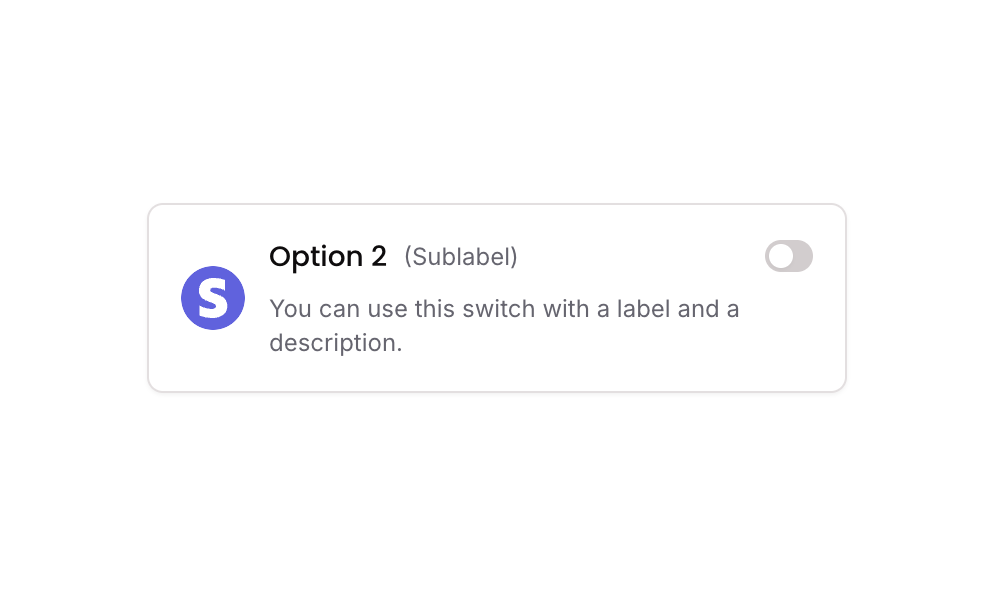
Switch 10 is a styled toggle component displayed as a card with a border and shadow. It includes an icon (image), a title, a sublabel, and a description text, alongside a visual toggle switch on the right. It is designed for settings or preference screens where users can enable or disable an option with clear labeling and branding context.How to use
1
Open the Brikl panel
Navigate to the Elements category in the Brikl panel.
2
Copy the component
Find Switch 10 and click Copy.
3
Paste into your editor
Paste it into your Bubble canvas with
Cmd + V (Mac) or Ctrl + V (Windows),
or right-click on the canvas and select Paste.States
This component includes conditional states that automatically change its appearance.These states are handled natively by Bubble and require no additional setup.
They will work automatically once the component is pasted into your editor.
Responsive
This component adapts to mobile screens. Font sizes and layout automatically adjust on screens smaller than Bubble’s built-in mobile breakpoint.Workflows
This component includes pre-built workflows.These workflows are included when you use the Copy with Workflows option in the Brikl panel.
Requirements
Platforms
License
This component requires a Starter plan.