
Overview
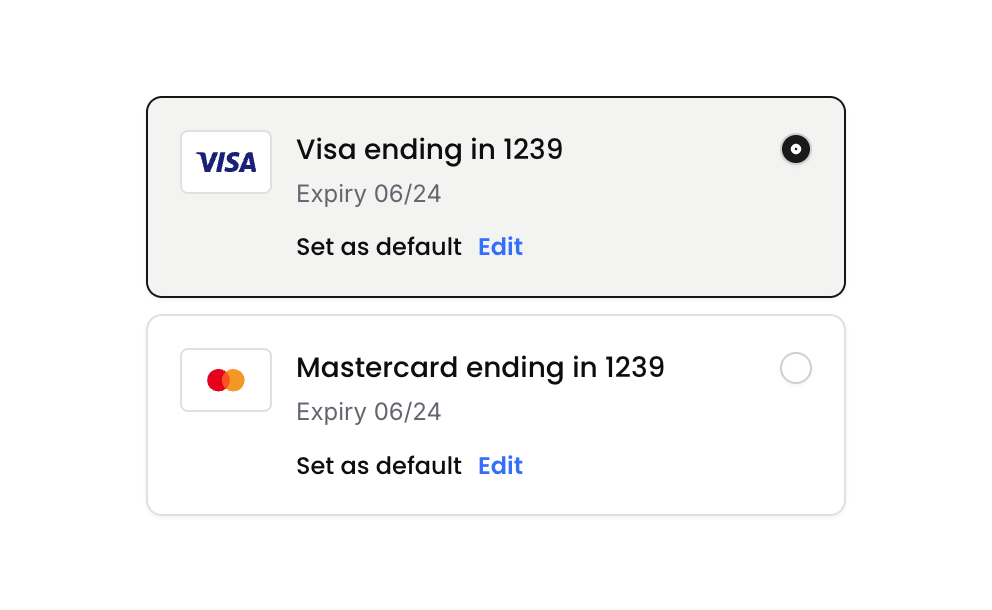
Radio 14 is a payment method selection component styled as a radio button group. Each option displays a card logo (e.g., Visa), card details (last four digits, expiry date), a ‘Set as default’ label, and an ‘Edit’ button. Users can select a payment option by clicking, which updates the active state visually by highlighting the selected card and filling the radio button indicator.How to use
1
Open the Brikl panel
Navigate to the Elements category in the Brikl panel.
2
Copy the component
Find Radio 14 and click Copy.
3
Paste into your editor
Paste it into your Bubble canvas with
Cmd + V (Mac) or Ctrl + V (Windows),
or right-click on the canvas and select Paste.States
This component includes conditional states that automatically change its appearance.These states are handled natively by Bubble and require no additional setup.
They will work automatically once the component is pasted into your editor.
Responsive
This component adapts to mobile screens. Font sizes and layout automatically adjust on screens smaller than Bubble’s built-in mobile breakpoint.Workflows
This component includes pre-built workflows.These workflows are included when you use the Copy with Workflows option in the Brikl panel.
Requirements
Platforms
License
This component requires a Starter plan.