
Overview
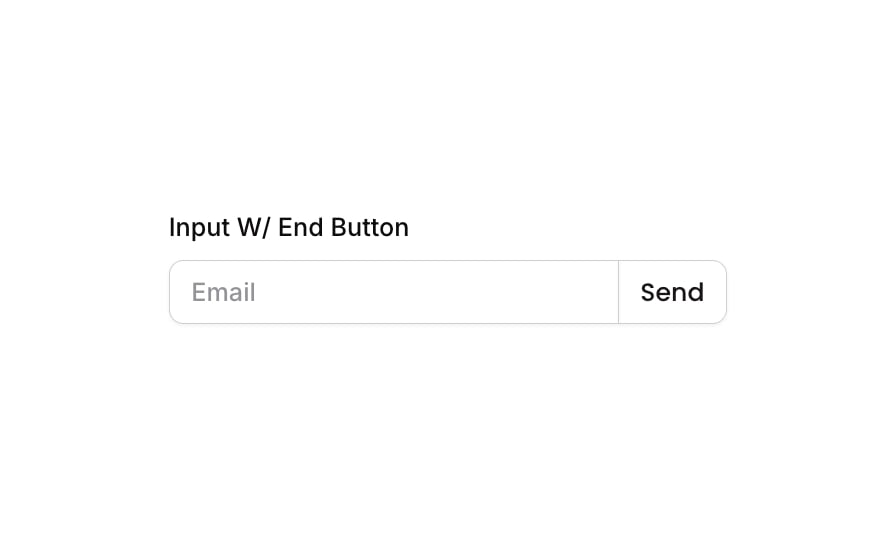
Input 13 is a labeled email input component with an integrated end button. It features a text label (‘Input W/ End Button’), a styled text input field with placeholder ‘Email’, and a ‘Send’ button with an arrow icon attached to the right side of the input. The layout uses a column container for the label and a row container for the input-button pair, making it suitable for email capture, search, or form submission use cases.How to use
1
Open the Brikl panel
Navigate to the Elements category in the Brikl panel.
2
Copy the component
Find Input 13 and click Copy.
3
Paste into your editor
Paste it into your Bubble canvas with
Cmd + V (Mac) or Ctrl + V (Windows), or right-click on the canvas and select Paste.States
This component includes conditional states that automatically change its appearance.These states are handled natively by Bubble and require no additional setup. They will work automatically once the component is pasted into your editor.
Responsive
This component adapts to mobile screens. Font sizes and layout automatically adjust on screens smaller than Bubble’s built-in mobile breakpoint.Requirements
Platforms
License
This component is available on the free plan.